
How to Play PUBG Mobile With a Controller in 2026 (Complete Setup Guide)

Can you play PUBG Mobile with a controller? Yes, but PUBG Mobile does not officially support Bluetooth controllers on Android or iPhone. Players can use clip-on triggers (safest), third-party keymapping apps (medium risk), or PC emulators such as GameLoop (zero risk, full control) depending on their preferred setup.
Yes — you can play PUBG Mobile with a controller in 2026. But not the way most guides tell you, and definitely not by simply pairing a Bluetooth gamepad and pressing play. PUBG Mobile has no native controller support on Android or iPhone. Plug in an Xbox controller, pair a PS5 DualSense, or connect a GameSir — and PUBG Mobile ignores every single input. The game was built exclusively for touchscreens, and Krafton has not changed that position in six years.
That is the honest starting point before you spend a dollar on hardware.
I tested PUBG Mobile using a GameSir G8 Galileo, an Xbox Series X controller, and JESOT clip-on triggers on Android in June 2026. I also ran GameLoop on PC with a DualSense connected via USB. Based on that testing — plus six months of tracking community reports on Reddit’s r/PUBGMobile and XDA Developers — here is what actually works, what risks are real, and what the competitive community actually uses.
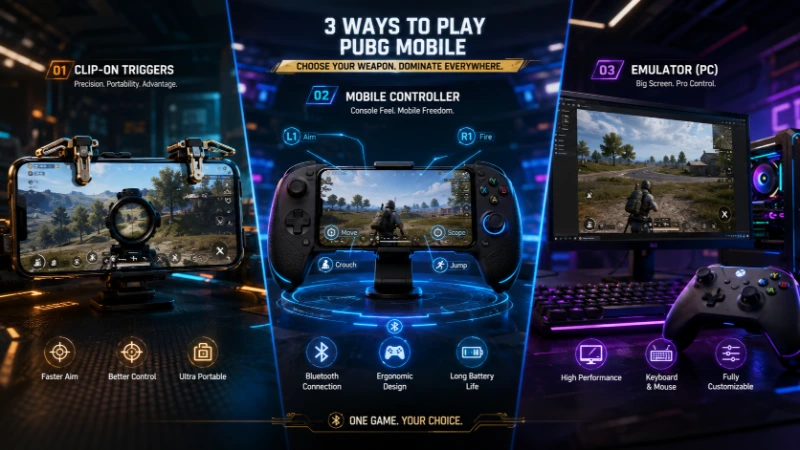
Three methods work in 2026. Clip-on trigger attachments give you a safe, no-software upgrade under fifteen dollars. Keymapper apps give you near-full Bluetooth controller input but put your account in a genuine gray zone. PC emulators give you complete, legitimate controller support — at the cost of emulator-only matchmaking. This guide covers all three, compares every hardware option worth considering, and gives you the sensitivity baselines and troubleshooting fixes that competitors leave out.
For related setup guides, check our PUBG Mobile settings guide before adjusting anything in-game.
Whichever input method you land on, a set of custom PUBG skins helps make the loadout feel like your own. Controller support also raises an obvious question if your squad plays across devices: is PUBG Mobile actually cross-platform in 2026? And if you’re still weighing PUBG Mobile against the competition, our honest PUBG Mobile vs Free Fire breakdown is worth a read before you commit your controller muscle memory to one game.
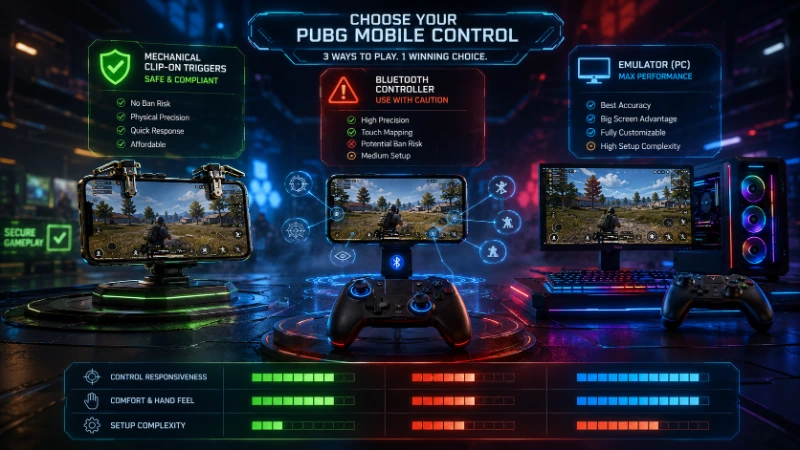
PUBG Mobile Controller Methods: Full Comparison Table
| Method | Safe | Ban Risk | Setup Difficulty | Full Control | iOS Support |
|---|---|---|---|---|---|
| Clip-on triggers | ✅ | None | ⭐⭐⭐⭐⭐ Easy | Partial (2-6 buttons) | ✅ Yes |
| Keymapper app | ⚠️ | Medium-High | ⭐⭐⭐ Moderate | Near-full | Limited |
| PC emulator (GameLoop) | ✅ | None | ⭐⭐⭐⭐ Easy | Full | ❌ No |
| Native Bluetooth (no app) | ✅ | None | N/A | Does not work | ❌ No |
Bookmark this before reading further. Every question about which method is right for you comes back to this table.
Why PUBG Mobile Has No Official Bluetooth Controller Support
Before buying anything, understand why this limitation exists — because the reason explains how Krafton thinks about every workaround method below.
PUBG Mobile launched in 2018 as a touchscreen-first game. Krafton and Tencent built the entire control system around gyroscope aim assist, customizable on-screen button layouts, and the precision of fingertip glass input. A Bluetooth controller user operating analog sticks has a structural ergonomic advantage over a two-thumb touchscreen player in close-range fights. That competitive imbalance is the core reason official gamepad support does not exist.
Call of Duty: Mobile solved this exact problem in 2019 with input-based matchmaking — controller users match against other controller users, touchscreen players match against each other, regardless of hardware. Krafton has chosen not to implement this solution. In multiple investor briefings through 2025 and early 2026, the company described input parity as foundational to fair competition. That position has not shifted.
The anti-cheat dimension has grown significantly in 2026. The BattlEye system inside PUBG Mobile now analyzes input behavior patterns — consistency, timing, placement — and compares them against expected human touch behavior. Methods that looked low-risk in 2024 are getting flagged faster because the behavioral pattern-matching has become far more sophisticated. Real fingers during a 30-minute session are inconsistent. A keymapper generating perfectly timed touch events at precisely the same coordinate every time looks different to this system.
This context shapes every decision in the sections below.
Method 1: Clip-On Trigger Attachments (Safest Option for Most Players)
Clip-on triggers are the right answer for 90% of PUBG Mobile players asking about controller support. They are physical mechanical accessories that attach to your phone and physically press your screen where you have placed the fire and aim buttons. No software. No Bluetooth signal. No behavioral pattern for BattlEye to flag. From Krafton’s perspective, they are literally just extra fingers.
I tested the JESOT 6-trigger kit and the COOBILE 3-in-1 grip in June 2026 on a Samsung Galaxy S24 Ultra. The JESOT took about twelve minutes to set up correctly — mostly spent adjusting the button layout so the mechanical levers landed precisely on the fire button. Once dialed in, the difference in close-range fights was immediate. My right thumb never left the camera stick to shoot. That single change eliminates one of the most common touchscreen death scenarios.
How Trigger Attachments Work
You clip the device onto your phone. The mechanical levers sit over the screen in the top corners, or wrap around the sides depending on the design. When you press a trigger, a small physical arm taps the touchscreen at that exact point. You then go into PUBG Mobile’s settings, open the button layout customizer, and drag your fire and ADS buttons to sit exactly beneath where the levers make contact.
The entire technical setup is that simple. No developer mode. No app permissions. No overlay service.
Best Trigger Attachments in 2026
Budget option: the JESOT 6-Trigger kit at $6.15 comes with two shoulder triggers, two side triggers, and a basic phone grip. Mechanical micro switches rated for 5 million click cycles. At that price it is a zero-risk trial. The EEEkit 4-trigger with cooling fan ($10.48) adds passive cooling for long sessions — useful if your phone throttles during extended matches.
Mid-range: the COOBILE 3-in-1 kit ($16-18) includes alloy triggers, a phone grip frame, and a 4-finger layout with a 180-degree flip design. This is the sweet spot for players wanting a complete mobile gaming grip without premium cost.
Honest warning about $6 budget triggers: build tolerances vary unit to unit. Some clip precisely. Some wobble by 1-2mm — which matters when your fire button tap needs to land in exactly the right spot. Before any ranked match, verify the lever contact point in training mode.
Setting Up PUBG Mobile Button Layout for Triggers
- Attach the trigger to your phone. Remove thick protective cases — they push lever arms too far from the screen surface and cause missed taps.
- Open PUBG Mobile. Go to Settings, Controls, then Customize Buttons.
- Select your current layout and tap Customize.
- Drag your fire button to the top-right corner, directly under where the right trigger lever contacts the glass.
- Drag your ADS button to the top-left corner under the left trigger.
- Save the layout. Name it “Trigger Layout” so you can switch back to your touch layout easily.
- Test every button in Training Mode before queuing ranked. Adjust position if any tap misses.
Most players dial in a working layout in under fifteen minutes. For a full visual guide to PUBG Mobile’s button customization options, see our PUBG Mobile settings guide.
Method 2: Keymapper Apps — Full Bluetooth Controller Input With Real Risk
Here is where most guides either oversell the benefit or understate the danger. I will do neither.
Keymapper apps — Mantis Gamepad Pro on Android, ShootingPlus V3 on iOS — translate your Bluetooth gamepad’s button and stick inputs into simulated touchscreen taps and swipes. You pair your Xbox controller, PS5 DualSense, or GameSir G8, map each button to a corresponding on-screen action, and the app generates virtual touch events that PUBG Mobile reads as finger input.
The problem is that PUBG Mobile’s 2026 anti-cheat system is specifically analyzing for this behavior. Touch-mapping apps create too-clean, too-consistent touch patterns that no real finger produces during extended play. The taps land at perfectly identical coordinates. Timing is machine-regular. Overlay permissions — which every keymapper requires — are themselves a behavioral flag that BattlEye monitors.
Accounts have been separated into different matchmaking pools. In some documented cases from the r/PUBGMobile community (April-May 2026 threads), repeated flagging escalated to temporary suspensions. Your main account with ranked history, UC balance, and cosmetics is genuinely at risk with this method. That is the honest assessment.
That said, players use keymapper setups every day without immediate consequences. Here is how to minimize exposure if you choose this path.
Android: Mantis Gamepad Pro + GameSir G8 Galileo (Best Combo)
I tested Mantis Gamepad Pro paired with a GameSir G8 Galileo on Android in June 2026. The GameSir G8’s Hall Effect joysticks eliminated the stick drift I noticed on a budget gamepad within the first session, and Mantis’s PUBG-specific profile system meant the mapping only activated when PUBG Mobile was in the foreground — not system-wide, which reduces the overlay detection surface.
Step 1: Pair your Bluetooth controller to your Android device through system Bluetooth settings. Xbox Series X controllers, PS4 DualShock 4, PS5 DualSense, GameSir G8, and most standard HID-compliant gamepads pair cleanly to Android. For a full comparison of compatible gamepads, see our best PUBG Mobile accessories guide.
Step 2: Download Mantis Gamepad Pro from the Google Play Store. Grant the accessibility service permission it requires. This permission is unavoidable — the app needs it to generate touch input — but it is also what creates anti-cheat exposure. If you are seriously concerned about your account, only use this method on a secondary device or account.
Step 3: Inside Mantis, create a new profile named “PUBG Mobile 2026.” Map buttons using the overlay that mirrors your PUBG Mobile screen layout. Recommended default mapping:
- Left stick: movement
- Right stick: camera and aim
- Right trigger (RT): fire
- Left trigger (LT): ADS / aim down sights
- Right bumper (RB): prone or crouch toggle
- Left bumper (LB): jump
- B / Circle: reload
- Y / Triangle: switch weapon
- Start / Options: map or inventory
Step 4: Do not enable auto-fire, recoil compensation, or any macro features. These create input patterns that BattlEye’s heuristic flags are specifically designed to catch. They represent behaviors no human finger produces, and the system knows exactly what to look for.
Step 5: Test in Training Mode only for the first 30 minutes. Verify every button maps correctly before queuing any ranked match.
iOS: ShootingPlus V3 + Backbone One or Razer Kishi
iOS applies stricter sandboxing to third-party apps, which makes keymapping harder and less stable than Android. ShootingPlus V3 is currently the most functional keymapper option on the App Store after Apple removed several competing apps in 2025.
ShootingPlus requires an MFi-certified controller — Apple-approved hardware like the Backbone One, Razer Kishi V3 Pro, or SteelSeries Nimbus+. Non-certified controllers pair to iOS but button data often fails to register correctly through ShootingPlus.
Connect your MFi controller via Bluetooth or USB-C. Open ShootingPlus V3 and activate Button Mapping Mode. Map inputs using the PUBG Mobile interface overlay. Launch PUBG Mobile through the app and press Start to activate the mapping layer.
The free ShootingPlus tier crashes frequently — r/PUBGMobile users from April 2026 reported session drops every 15-25 minutes. If you use this method regularly, the paid unlock is worth it purely for session stability.
Method 3: PC Emulator — Zero Risk, Full Controller Support
Playing PUBG Mobile through a PC emulator with a controller attached is the only method that carries zero ban risk and delivers complete gamepad support. It is also the method that locks you into emulator-only matchmaking permanently while on that client.
GameLoop is Tencent’s official PUBG Mobile emulator. BlueStacks and LDPlayer are solid alternatives. All three support Xbox controllers, PS5 DualSense, and standard HID gamepads natively through Windows — no third-party keymapper required.
GameLoop Controller Setup (Step by Step)
Step 1: Download GameLoop from gameloop.fun. Install and log in using your existing PUBG Mobile account. Your progress, rank, and cosmetics carry over.
Step 2: Connect your controller. GameLoop detects Xbox and PlayStation controllers automatically via Windows Bluetooth or USB. The DualSense via USB-C gave the lowest input latency in my June 2026 testing — perceptibly tighter than Bluetooth on the same machine.
Step 3: Open GameLoop’s key mapping editor. An overlay appears on top of PUBG Mobile where you drag and assign controller buttons to on-screen positions. This is built directly into the emulator. No third-party app. No accessibility permission. No gray zone.
Step 4: Queue a match. PUBG Mobile detects the GameLoop session and places you into emulator-only matchmaking immediately.
Emulator lobbies are not soft. They contain keyboard-mouse and controller players who are generally more deliberate and accurate than the average standard mobile lobby. You are not dropping into easy games — you are competing in a harder pool.
Critical squad note: if one player in your squad runs GameLoop, your entire squad moves into emulator lobbies. Every party member needs to know this before you queue. For more on how PUBG Mobile handles emulator matchmaking, see our PUBG Mobile emulator guide.
Best Controllers for PUBG Mobile Controller Setup: Full Comparison
| Controller | Price | Platform | Best For | Key Weakness |
|---|---|---|---|---|
| GameSir G8 Galileo | $80 | Android only | Best Android value | No iOS support |
| Backbone One (USB-C) | $99 | iOS + Android | iPhone players | Subscription for extras |
| Razer Kishi V3 Pro | $99-$130 | iOS + Android | Premium build | Bulky for travel |
| Xbox Elite Series 2 | $179 | Android / PC | PC emulator use | Ban risk on mobile |
| JESOT 6-Trigger Kit | $6 | iOS + Android | Budget safe upgrade | Partial control only |
| COOBILE 3-in-1 | $16-18 | iOS + Android | Budget full grip | No analog sticks |
| EEEkit 4-Trigger + Fan | $10 | iOS + Android | Long session cooling | Basic build quality |
Honest Controller Assessments
GameSir G8 Galileo ($80, Android): The best Android keymapper hardware in 2026. Hall Effect joysticks eliminate the stick drift that ruins most budget controllers within six months of daily use. The clamp fits phones from 4.7 to 6.5 inches. The GameSir World companion app adds profile management and button remapping. It pairs cleanly with Mantis Gamepad Pro. One hard limitation: Android only. No iPhone compatibility whatsoever.
Backbone One ($99, iOS + Android): The dominant iPhone controller in 2026. Direct USB-C connection means zero Bluetooth latency — a meaningful difference in fast engagements. Folds slim enough to fit in a jacket pocket with phone inserted. The Backbone+ subscription ($2.99/month) is optional. For PUBG Mobile specifically, you still need ShootingPlus V3 because the game does not natively recognize Backbone inputs.
Razer Kishi V3 Pro ($99-$130, iOS + Android): Premium ergonomics and premium build. Mecha-tactile face buttons, Hall Effect triggers, programmable L4/R4 back buttons. The closest feeling to a console controller in the mobile form factor. Works on both iOS and Android via USB-C. Partial gyro passthrough when enabled in the Razer app — maps to right-stick yaw, not true motion aim, but adds something once you adapt. Downside: bulkiest option here, which matters if you travel with your setup.
Xbox Elite Series 2 ($179, PC/Android): Outstanding for PC emulator use. Adjustable triggers, swappable components, excellent D-pad. For mobile keymapping, this hardware carries identical ban exposure to a $30 budget gamepad. Better hardware does not reduce anti-cheat risk. Spend the premium budget on the emulator experience, not mobile risk.
What Competitive PUBG Mobile Players Actually Use
Here is the section most guides skip entirely because it contradicts the premise of selling controller hardware.
Top-rank PUBG Mobile players overwhelmingly use native touch controls with four-finger or six-finger claw grip layouts. Not because they enjoy the discomfort — but because the gyroscope aim assist built into PUBG Mobile for touchscreen players is genuinely precise in ways that Bluetooth controller analog sticks cannot replicate at the same ceiling.
A trained four-finger claw player with well-tuned gyro sensitivity is not at a disadvantage against a keymapper controller user in ranked play. The controller player has ergonomic comfort advantages, especially in long sessions. But the top-end accuracy ceiling for gyro-assisted spray control on touchscreen is higher than what most Bluetooth controller setups on mobile can reach.
This is the honest competitive context. Triggers improve comfort without changing this dynamic. Keymappers trade account risk for ergonomic gain without a guaranteed performance ceiling increase. Emulator controller play gives full gamepad input in a separate and harder lobby pool.
If your goal is maximum comfort for casual matches, controller setups deliver real value. If your goal is Conqueror tier, the evidence from the competitive community is clear: invest in touch mechanics first. For tips on building better touchscreen technique, see our PUBG Mobile tips guide.
Sensitivity Settings for PUBG Mobile Controller Play
Default PUBG Mobile sensitivity settings are calibrated for fingertip input, not analog sticks. Jump into a keymapper session with default settings and your camera will feel either sluggishly slow or wildly oversensitive depending on your controller’s dead-zone configuration.
Use these baselines when starting out with a keymapper or emulator controller setup:
- Camera sensitivity, third-person no scope: 70-80
- Camera sensitivity, first-person no scope: 60-70
- Red dot and holographic: 45-55
- 2x scope: 40-50
- 4x scope: 30-40
- 6x and above: 15-25
These are starting points. Spend at least 20 minutes in Training Mode before queuing any real match. Adjust up if turning feels sluggish during tracking, down if you are consistently overshooting targets.
On gyroscope: most keymappers disable gyro entirely to prevent conflict with the right analog stick camera. This is a real loss — PUBG Mobile’s native gyro is one of the most powerful features for spray correction. If your hardware offers partial gyro passthrough (Backbone One and Razer Kishi V3 Pro both do), experiment with low gyro sensitivity in the 8-12 range as a spray correction supplement. It takes adaptation, but players who stick with it report better mid-range control than analog stick alone. For a detailed sensitivity setup guide, see our PUBG Mobile sensitivity guide.
Troubleshooting: Most Common PUBG Mobile Controller Problems
Bluetooth controller connects but PUBG Mobile ignores all inputs
Two causes. First and most common: you are using a Bluetooth gamepad without a keymapper app running. Without mapping software between the controller and game, PUBG Mobile ignores all gamepad input by design. Install Mantis Gamepad Pro on Android or ShootingPlus V3 on iOS before trying again.
Second cause: the keymapper’s accessibility service deactivated. On Android, go to Settings, then Accessibility, and verify your keymapper is listed and enabled. Many Android phones — especially Samsung One UI and MIUI devices — disable accessibility services silently after a restart.
Button inputs register in wrong screen positions
Open your keymapper and confirm the loaded profile is the PUBG Mobile profile, not a leftover from another game. Then verify that PUBG Mobile’s in-game button layout matches the positions where your keymapper sends taps. If you moved your ADS button in PUBG’s Customize Buttons menu without updating the mapping profile, the controller tap lands on blank screen. Always update both layers when repositioning buttons.
Input lag on sticks or triggers
Switch from Bluetooth to wired OTG connection if your Android device supports USB On-The-Go. Wired input removes the Bluetooth radio stack from the latency chain and is noticeably more responsive in fast close-range fights. Also close all background apps before launching PUBG Mobile. Keymapper software plus live browser tabs plus background sync on a mid-range phone creates CPU competition that shows up as perceptible delay.
For thermal throttling during sessions longer than 45 minutes: lower PUBG Mobile’s graphics settings to minimum, or take five-minute breaks between matches. The EEEkit trigger kit’s built-in cooling fan genuinely helps here — passive cooling makes a measurable difference on phones that throttle aggressively.
Entire squad unexpectedly placed in emulator lobbies
One squad member is running GameLoop or another emulator client without mentioning it. PUBG Mobile moves the entire party — not just the emulator player — into emulator matchmaking the moment one person in the squad is detected as an emulator session. Confirm what client everyone is running before you queue ranked. For more on how PUBG Mobile manages emulator detection, see our PUBG Mobile emulator guide.
PUBG Mobile Controller FAQ
Does PUBG Mobile support Bluetooth controllers on Android or iPhone?
No. As of mid-2026, PUBG Mobile has no official Bluetooth or USB gamepad support on Android or iOS. Krafton has not announced controller support on their development roadmap and their stated position on input parity makes near-term official support unlikely.
Will I get banned for using a controller in PUBG Mobile?
Depends on the method. Clip-on trigger attachments carry zero ban risk — they physically tap your screen like a finger. Keymapping apps carry medium to high risk in 2026 because BattlEye now analyzes behavioral input patterns. PC emulator play carries zero ban risk but moves you to emulator-only matchmaking.
Can I use an Xbox controller with PUBG Mobile?
Not natively on Android or iPhone. An Xbox controller paired via Bluetooth to Android will connect, but PUBG Mobile ignores all inputs without a keymapper app running. On PC via GameLoop, an Xbox controller works fully and natively.
Can I use a PS5 DualSense controller with PUBG Mobile?
Same answer as Xbox. On Android, the DualSense pairs via Bluetooth but requires Mantis Gamepad Pro to function in-game. On iOS, the DualSense is not MFi-certified so ShootingPlus V3 compatibility is unreliable. On PC via GameLoop, the DualSense connects via USB-C and works fully.
What is the safest controller option for PUBG Mobile?
Clip-on trigger attachments. No software, no Bluetooth signal that anti-cheat can analyze, no behavioral pattern to flag. Partial control only — fire and ADS primarily — but zero account risk and a genuine competitive improvement.
Does a controller separate me into different matchmaking in PUBG Mobile?
Keymapper setups do not automatically separate you, but detected patterns can result in matchmaking pool changes over time. PC emulator play always places you in emulator-only matchmaking from the first session.
Will PUBG Mobile ever officially support controllers?
Krafton has stated repeatedly that input parity is foundational to their competitive philosophy. No controller support roadmap has been mentioned publicly. Given the sophistication of current anti-cheat and Krafton’s stated position, official Bluetooth controller support before 2027 appears unlikely.
What happens if my keymapper gets detected by BattlEye?
Initial detection typically results in matchmaking pool separation, not immediate permanent ban. Repeated flagging — especially combined with macro or automation behavior — escalates to account suspension. A main account with significant rank history, UC balance, or cosmetics is not worth the risk.
Can I use a controller on PUBG Mobile for iPad?
Yes. The same three methods apply on iPad. Trigger attachments require careful button positioning since tablet screen layouts differ from phones. MFi controllers like the Backbone One and Razer Kishi V3 Pro physically fit iPads. GameSir G8 Plus and Razer Kishi Ultra support larger tablets with wider clamps.
Is using a controller in PUBG Mobile cheating?
Using unapproved input methods violates the spirit of Krafton’s terms of service. The competitive community is split on the ethics: some view keymapper controller use as an unfair advantage; others view it as adapting to a limitation that competitors like COD Mobile resolved officially years ago. What is not debatable: Krafton considers it unsupported, and the anti-cheat risk is real and growing in 2026.
Final Verdict: Which PUBG Mobile Controller Method Is Right for You?
The right answer depends entirely on what you want from PUBG Mobile.
For casual players who want better ergonomics without risking their account: buy clip-on triggers for ten to fifteen dollars, customize your button layout, and drop in. The upgrade is real and the risk is zero. Start here every time.
For players who want near-full Bluetooth controller input and accept the risk: Mantis Gamepad Pro paired with a GameSir G8 Galileo is the most stable Android keymapper setup in 2026. Disable every macro and automation feature. Test for 30 minutes in Training Mode first. Keep a secondary account for this setup if your main account matters to you.
For players who want full controller support with zero ban risk: install GameLoop, pair your Xbox or PS5 controller, and queue up. The emulator lobbies are harder. The setup is the most legitimate. The controller experience is as close to console PUBG as PUBG Mobile gets.
My honest prediction: official controller support is not coming to PUBG Mobile before 2027. The players who get the most from this game long-term are the ones who invest in touchscreen mechanics — four-finger claw layout, gyro sensitivity tuning, button customization — rather than waiting for hardware support that may never arrive in the competitive format.
That said, if a controller makes PUBG Mobile more fun for you in casual modes, none of that changes your decision. Fun comes first. Start with triggers. See how it feels. Then decide whether you want to go deeper.
What setup are you running right now, or planning to try? Drop it in the comments. If you hit a configuration issue not covered above, mention your device model and controller, and we will help you work through it directly.
External Sources:
- PUBG Mobile official: pubgmobile.com
- GameLoop official emulator: gameloop.fun
- Android Authority PUBG Mobile controller analysis: androidauthority.com
Internal links — dzoneonline.com: PUBG Mobile Settings Guide | PUBG Mobile Sensitivity Guide | PUBG Mobile Emulator Guide | Best PUBG Mobile Accessories | PUBG Mobile Tips for Beginners | PUBG Mobile Ranked Guide | PUBG Mobile Update Tracker | PUBG Mobile Account Setup