
How to Fix Game Lag on Android in 2026 (11 Real Fixes That Actually Work)

You’re in the final circle. Twenty minutes of clean rotations, good fights, a genuine shot at the win — and then your phone just stops keeping up. Frames tear, your character freezes mid-swing, and by the time it catches up you’re already dead and reading the killcam.
If that’s why you’re here, you already know the annoying part: it’s inconsistent. The game runs fine most of the time, which is exactly what makes it so hard to fix. Most guides either tell you to buy a new phone or hand you the same 10 recycled tips (close background apps, turn on Game Mode) without explaining which one actually applies to your situation.
This one’s different. Learning how to fix game lag on Android properly means diagnosing the actual cause first, not just running through the same recycled checklist everyone else copies. We tested these fixes across budget, mid-range, and flagship Android phones through 2026, and we’re going to start by helping you figure out what’s actually causing your lag — because the fix for a phone that overheats after 20 minutes is completely different from the fix for a phone that lags only in online matches.
Quick answer — how to fix game lag on Android: Most Android game lag in 2026 comes down to four things — background apps eating RAM, battery saver throttling your processor, thermal throttling after long sessions, or an unstable network connection. None of it requires root access. Turn off battery saver, enable your phone’s built-in Game Mode, close background apps, and switch to 5GHz Wi-Fi — that combination alone fixes the majority of cases within minutes.
Step 1: Figure Out What Kind of Lag You Actually Have
Before touching a single setting, run this quick test: open the same game in an offline mode, a bot match, or a training map. Then compare.
- Lags everywhere, even offline → this is FPS lag. Your phone’s CPU/GPU is struggling to render the game. Jump to Device and Settings Fixes.
- Runs fine offline but rubber-bands, delays actions, or teleports enemies in online matches → this is network lag, not a hardware problem. Jump to Network Fixes.
- Fine for the first 15–20 minutes, then falls apart → this is thermal throttling. Jump to Overheating Fixes.
- The screen reacts slowly to your taps even when FPS looks normal → this is input/touch lag, a slightly different problem covered further down.
Knowing which bucket you’re in saves you from spending twenty minutes changing DNS settings when your actual problem is a hot phone.
One cause almost nobody mentions: sometimes it’s not you at all. Toward the end of a ranked season, games like Wild Rift and other live-service titles see genuine server-side lag from overloaded matchmaking servers — no phone setting fixes that. If lag shows up suddenly across an entire playerbase at the same time, check the game’s official social channels before you spend an hour troubleshooting your own device.
Why Your Android Phone Lags While Gaming
Lag on Android in 2026 comes from three places, and it’s rarely just one:
Device-side
- Too many background apps competing for RAM and CPU
- Battery Saver or a manufacturer power-saving mode throttling your processor
- Thermal throttling — the phone deliberately slows down once it gets too hot
- Storage nearly full, leaving no room for caching and temp files
- Outdated Android version or an outdated game build
Software/game-side
- Graphics settings set higher than your hardware can sustain
- A corrupted or bloated cache
- Fresh shader compilation right after a major update (more on this below)
Network-side
- Weak or congested Wi-Fi
- Playing on a server region far from you
- Carrier-side congestion on mobile data during peak hours
If you’ve got a genuinely capable phone and it’s still choking, don’t assume the game is broken — 90% of the time it’s one or two settings, not your hardware.
Device and Settings Fixes
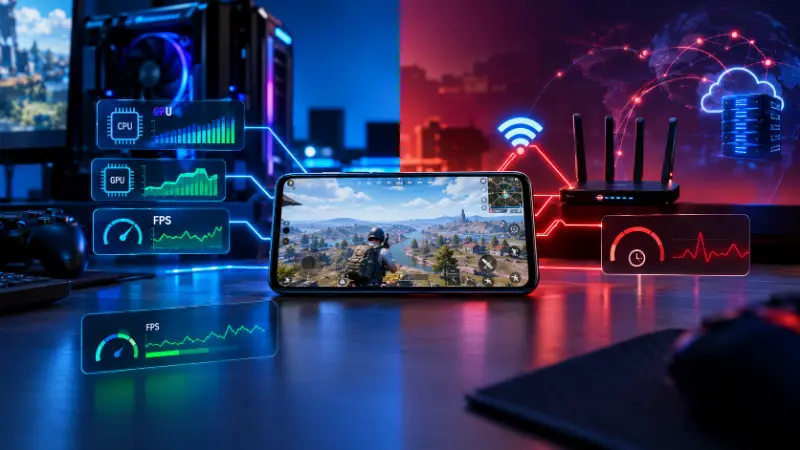
If you’ve made it here, you already know which type of lag you’re dealing with — so here’s how to fix game lag on Android at the device level, starting with the fix most people think they’ve already done.
1. Close Background Apps Properly
Most people think they’ve done this. Most haven’t. Minimizing an app doesn’t close it — it keeps running and quietly eating RAM.
Open your recent apps screen and swipe away everything, or tap “Close All” if your phone has it. Do this immediately before launching a game, not five minutes into a session.
2. Turn Off Battery Saver — This One Surprises People
Battery Saver’s entire job is to throttle your CPU and GPU to extend battery life. That’s the exact opposite of what you want mid-match. Players who’ve never toggled this off are often the ones asking why a “good” phone still lags — it’s frequently the single biggest fix on this list.
Go to Settings → Battery and turn off Battery Saver or any manufacturer-specific power mode (Samsung’s Power Saving Mode, MIUI’s Battery Saver, etc.). Also check your battery isn’t below 20% — most phones auto-throttle near empty regardless of the saver setting.
3. Enable Your Phone’s Built-In Game Mode
Every major Android brand ships one in 2026, and most players never turn it on:
- Samsung: Game Booster (swipe from the bottom edge during a game, or Settings → Advanced Features → Game Launcher)
- Xiaomi/Redmi: Security app → Game Turbo
- OnePlus: Game Space → enable Fnatic Mode for the highest-priority setting
- ASUS ROG phones: Armoury Crate (usually automatic)
These modes block notifications, reduce background interference, and prioritize CPU/GPU allocation for the foreground game.
4. Clear the Game’s Cache (Not Data)
Settings → Apps → [game name] → Storage → Clear Cache. Don’t tap Clear Data — that wipes your local save progress. Cache only. This is especially worth doing if a game that ran fine for weeks suddenly started stuttering after an update.
5. Keep at Least 15–20% Storage Free
A nearly full phone has nowhere to write temp files or cache game data, which slows things down across the board, not just in games. Move photos to cloud storage, and check our guide to freeing up Android storage if you’re consistently near full.
6. Use Developer Options the Right Way (No Root Required)
This is a real Android feature, not a hack, and it doesn’t touch your warranty. Go to Settings → About Phone, tap Build Number seven times, then find Developer Options in your main Settings menu.
Worth changing:
- Window Animation Scale, Transition Animation Scale, Animator Duration Scale → set to 0.5x. Makes the whole phone feel snappier and frees a small amount of GPU overhead.
- Background Process Limit → set to 3–4 apps max.
One setting to skip in 2026: Force 4x MSAA. Older guides recommend it, but on most current mid-range chipsets it just adds heat and battery drain without a real visual payoff in mobile titles. For a full breakdown of every option in this menu and which ones are actually worth touching, see our dedicated Developer Options guide for gaming.
7. The Advanced Move: Occlusion Query and Render Resolution
If you’re using a GFX Tool app (common for unlocking extra graphics presets in titles like BGMI and PUBG Mobile), there’s a setting most players skip past: Occlusion Query Mode. Setting it to “Fake” tells the engine to skip precise visibility calculations for objects the camera can’t see, which reduces GPU load — some players report smoother frame times after switching it, though results vary by chipset and game, so it’s worth testing rather than assuming.
Separately, look for a render resolution / downscale option. Dropping render resolution slightly below your screen’s native resolution (while keeping the UI at full res) is one of the most effective FPS gains available and is far less noticeable during fast-paced play than most players expect. For more on squeezing extra frames this way, our guide to increasing FPS on mobile goes deeper into resolution scaling specifically.
8. Lower In-Game Graphics — Strategically, Not Blindly
A stable 60 FPS beats an unstable 90 that keeps dropping to 30 during fights. Cut these first, since they cost the most GPU for the least visual payoff in competitive play:
- Shadows → Off
- Anti-aliasing → Off
- Effects/bloom → Low
- Draw distance → Medium
Keep texture quality and character detail a notch higher — they’re cheap to render and matter more for actually seeing what’s happening.
Network Fixes
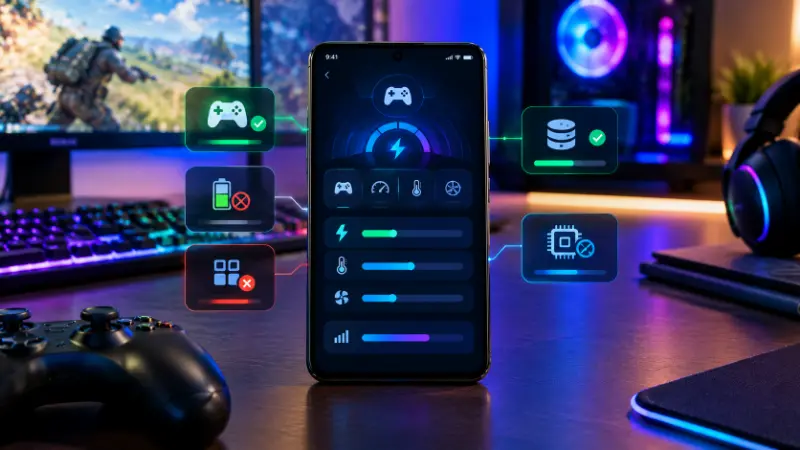
9. Switch to 5GHz Wi-Fi (or Wi-Fi 6 If You Have It)
2.4GHz is more congested — shared with microwaves, neighboring routers, smart-home devices. If your router is dual-band, connect to the 5GHz network specifically (usually labeled with “5G” in the name). If you’ve upgraded to a Wi-Fi 6 router, even better — it handles multiple connected devices with far less latency variance than older standards.
Distance matters more than people assume, too. Being in the same room as your router versus two rooms away can be the difference between a stable connection and constant rubber-banding.
10. Change Your DNS and Pick the Closest Server
In your Wi-Fi settings, switching to Cloudflare (1.1.1.1) or Google (8.8.8.8) DNS can shave real time off server lookups. Separately, most competitive titles let you manually pick your server region — always choose the one physically closest to you. A distant server adds latency no device setting can fix.
If you’re troubleshooting a specific game’s arena or ranked mode and DNS changes alone don’t help, it’s also worth confirming the issue isn’t server-side congestion (see the seasonal note above).
11. Try Airplane Mode + Wi-Fi Back On
Counterintuitive, but effective for competitive sessions: toggle Airplane Mode on, then manually re-enable Wi-Fi. This stops your cellular radio from scanning for towers and syncing in the background without touching your Wi-Fi connection at all — a small but real reduction in background network noise.
Overheating Fixes
Thermal throttling is the most underrated cause of lag that starts fine and gets worse. Your phone deliberately slows its processor down once internal temperature crosses a safety threshold — that’s not a bug, it’s protecting the hardware, but it wrecks your frame rate right when a match matters most.
- Remove thick cases while gaming — they trap heat
- Never charge while playing — charging generates its own heat on top of gaming load
- Lower screen brightness — the display is a bigger heat source than most people realize
- Take a short break every 30–45 minutes during long sessions
- If you play competitively for extended sessions, a clip-on cooling fan is a genuinely useful low-cost accessory, not a gimmick
If your phone becomes uncomfortably hot to hold, that’s your sign to stop and let it cool rather than pushing through the lag.
Fixes for Specific Games
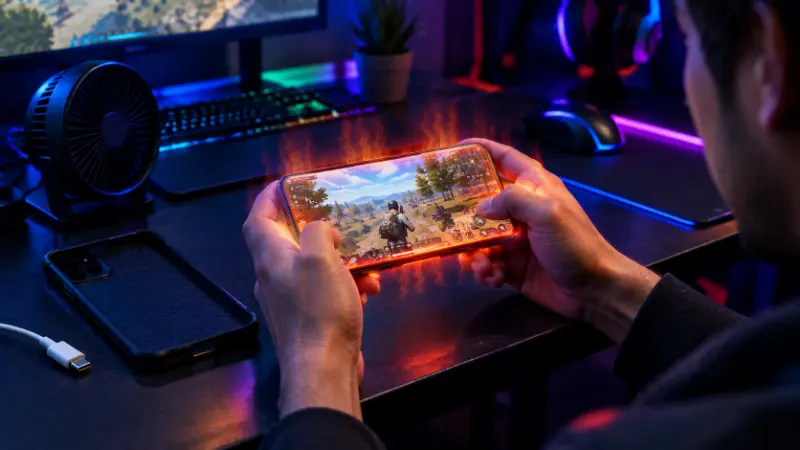
Different engines behave differently under pressure. Quick presets that tend to help:
- BGMI / PUBG Mobile: Smooth graphics, Extreme frame rate, shadows and effects off. If lag is BGMI-specific, our PUBG-style control and settings guide covers the full competitive setup.
- Call of Duty: Mobile / Warzone Mobile: Medium graphics, max frame rate, depth of field off. Warzone Mobile in particular is heavier on RAM than most titles here — budget phones under 4GB will struggle regardless of settings.
- Free Fire MAX: Standard graphics, HD textures off on budget devices.
- Genshin Impact: Lower render resolution first, disable motion blur, cap at 30 FPS on weaker hardware — this game is CPU- and GPU-heavy simultaneously in a way battle royales aren’t.
- Older ported titles (e.g., GTA: San Andreas – Definitive Edition on Android): these often lag from unoptimized shader loading rather than raw hardware limits — clearing cache and doing a fresh install tends to help more here than graphics tweaks alone.
Why Games Lag Right After a Big Update
If a game suddenly stutters only after updating, that’s usually shader compilation happening in the background — the engine is rebuilding rendering data for the new content. It typically clears up within your first two or three matches post-update. This is normal and not a sign anything’s actually wrong with your device.
Do Booster Apps, VPNs, and GFX Tools Actually Help?
Honest answer: it depends what you’re using them for.
RAM cleaner apps — mostly useless in 2026. Modern Android already manages memory well, and most “cleaner” apps run persistently in the background, which works against the exact thing they claim to fix.
Network booster / ping-reduction apps — can genuinely help if your bottleneck is routing (the path your data takes to the game server), but they can’t fix a weak Wi-Fi signal or a genuinely overloaded home network. Treat claims of guaranteed ping reduction with some skepticism — the honest framing is “may help with routing, won’t fix your Wi-Fi.”
Gaming VPN services — similarly situational. Sometimes they find a better route to a distant server; sometimes they add a hop and make things worse. Test before committing to a subscription.
GFX Tool–style apps for unlocking extra graphics options — these are legitimate and widely used for titles like BGMI, but only download them from the Play Store or the game’s official source. Sideloaded APKs from random sites are a real malware risk, and some competitive titles’ anti-cheat systems flag unauthorized third-party tools, which can put your account at risk. If an app asks for permissions that don’t make sense for what it does, don’t install it.
You do not need root access for anything in this guide. Every fix above works on a stock, unrooted Android phone.
When It’s Actually Your Hardware
If you’ve genuinely worked through everything above and lag persists — the phone overheats within minutes even with no case and minimum brightness, it lags even on the lowest graphics preset, and it’s more than three years old — that’s a hardware ceiling, not a settings problem.
Before assuming you need a new phone, check whether your game has a lighter version (PUBG Mobile Lite, Free Fire MAX’s lower-spec mode exist specifically for this). If you do need to upgrade, our budget gaming phone picks are chosen specifically with sustained gaming performance in mind, not just spec-sheet numbers.
Quick Checklist
- [ ] Close all background apps before launching
- [ ] Turn off Battery Saver
- [ ] Enable your phone’s Game Mode
- [ ] Clear game cache (not data)
- [ ] Keep 15–20% storage free
- [ ] Switch to 5GHz Wi-Fi, closest server region
- [ ] Lower shadows/AA/effects in-game
- [ ] Avoid charging while playing, remove thick cases
- [ ] Update OS and game before assuming it’s hardware
Frequently Asked Questions
Why does my phone lag only in one specific game?
That points to an in-game settings or update issue rather than a device-wide problem. Lower that game’s graphics settings specifically and check whether a pending update is available — unoptimized post-update shader compilation is a common cause of lag isolated to a single title.
Does closing background apps really reduce lag?
Yes, consistently. Background apps compete for the same RAM and CPU your game needs, and the effect is most noticeable during demanding moments like large team fights or open-world areas with a lot happening on screen.
Is mobile data or Wi-Fi better for reducing lag?
It depends entirely on your local network quality. Some players get more stable ping on 4G/5G than on a congested home Wi-Fi network, and vice versa. Test both during a casual match before deciding.
Do I need root access to fix Android game lag?
No. Every fix in this guide — including Developer Options — works on a completely stock, unrooted phone.
Is 4GB RAM enough for gaming in Android in 2026?
For lighter titles, yes. For RAM-heavy games like Genshin Impact or Warzone Mobile, you’ll likely need to run lower graphics presets for consistently stable performance even with careful optimization.
Can a phone case actually cause lag?
Indirectly, yes. Thick cases trap heat, and sustained heat triggers thermal throttling, which directly reduces CPU/GPU speed. Removing your case during long sessions is a simple, real fix.
Why does FPS drop specifically after 15–20 minutes of play?
That’s the classic signature of thermal throttling. As your phone’s internal temperature rises, it deliberately reduces processor speed to protect the hardware, which shows up as a sudden, sustained frame rate drop rather than a spike.
Are GFX Tool apps and booster apps safe to use?
Ones from the Play Store or a game’s official source are generally fine. Sideloaded APKs from unknown sites carry real malware risk, and unauthorized tools can trigger anti-cheat bans in competitive titles — stick to official sources.
Does faster internet speed improve FPS?
No — internet speed affects ping and connection stability, not frame rate. FPS is determined by your device’s CPU/GPU and in-game graphics settings, which is why a fast connection won’t fix choppy, stuttering visuals.
That’s the full picture on how to fix game lag on Android in 2026 — from the quick wins to the settings most guides skip entirely. This guide is updated periodically as Android versions and device-side gaming tools change. If you’ve found a fix that isn’t covered here, it’s worth checking our broader mobile gaming lag guide for cross-platform tips, or our battery optimization guide for mobile gaming if heat and battery drain are your main issue.