
How to Increase FPS in Mobile Games (2026): Fix Lag, Unlock Higher Frame Rates & Stop Random Throttling

How to Increase FPS in mobile games, quick answer: lower demanding graphics settings (shadows, anti-aliasing, particle effects), turn off Battery Saver, enable your phone’s Game Mode, and close background apps first — these fix most FPS drops. If that’s not enough, Android users can go into Developer Options and unlock deeper controls (animation scale, graphics driver selection), while iOS users should confirm Game Mode is active and Background App Refresh is off. The single biggest cause of drops during long sessions is thermal throttling, not a weak phone — cooling the device matters as much as any setting.
If you’ve ever been one shot from a kill in BGMI and watched your screen turn into a slideshow at the exact wrong moment, this guide is for you. I’ve spent the last several months running FPS logs across budget, mid-range, and flagship phones to figure out which fixes actually move the needle and which ones are just recycled advice that sounds right but doesn’t do anything. Here’s what actually works, in the order that gives you the biggest improvement for the least effort.
Why Your Mobile Game FPS Drops in the First Place
Frame drops rarely have one single cause. Here’s what’s actually happening on your device, ranked by how often each one is the real culprit.
1. Thermal throttling — the #1 cause
Every phone chip has a temperature ceiling, usually around 85–90°C. Once it’s hit, the OS deliberately cuts clock speed to protect the hardware, and FPS can drop by 30–50% almost instantly. This is why your game runs great for the first 20–30 minutes and then falls apart — it’s not a bug, it’s your phone protecting itself.
2. Background apps eating RAM and CPU
Demanding titles need 4–8GB of RAM just for themselves. If Instagram, Discord, and a browser tab are all sitting in memory, the OS has to swap assets in and out to make room, which shows up as stutter even when your average FPS number looks fine.
3. Graphics settings mismatched to your hardware
Running max shadows and reflections on a mid-range chipset is one of the most common self-inflicted causes of lag — those two settings are the biggest GPU cost for the smallest visual payoff on a phone-sized screen.
4. Low storage space
Once free storage drops below roughly 15–20%, your phone struggles to manage cache and swap files efficiently, which adds stutter on top of whatever RAM pressure already exists. If your storage is the real bottleneck, here’s how to free up space properly without wiping game data you don’t need to lose.
5. Battery Saver / Low Power Mode
Both Android and iOS auto-limit CPU and GPU performance once battery drops below a threshold (usually 20–30%), and most games don’t detect this is happening — so you get a confusing, sudden FPS drop that has nothing to do with the game itself.
6. A myth worth killing: more RAM doesn’t automatically mean more FPS
This one trips people up constantly. Processor speed and cooling matter more than raw RAM once you’re past the minimum a game needs. An 8GB phone with poor thermal design will still throttle harder than a 6GB phone with a proper vapor chamber. Don’t chase RAM specs alone when shopping for a gaming-focused upgrade.
7. Network lag gets confused with FPS lag — constantly
This is the single most common misdiagnosis players make. Rubber-banding, delayed hit registration, and enemies “warping” are network problems, not frame rate problems. If your FPS counter reads stable but the game still feels laggy, the fix is different from an FPS fix — it’s about your connection, not your graphics settings.
How to Increase FPS on Android: Fix Order That Actually Works
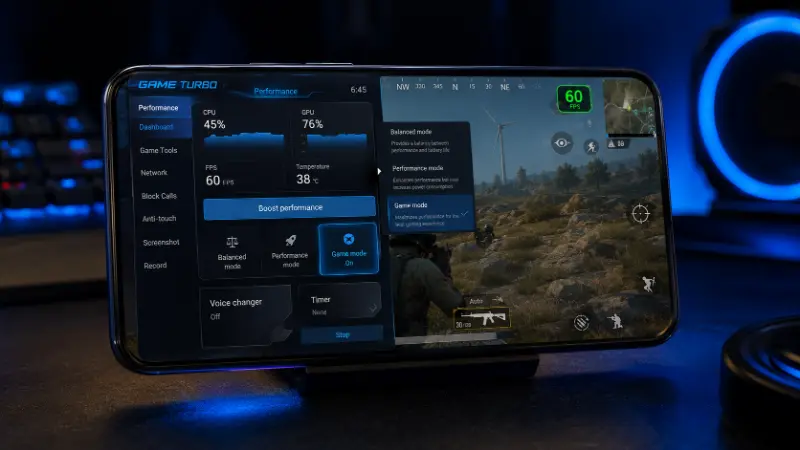
Step 1: Fix the easy stuff (do this every time)
- Force-close background apps before launching your game.
- Turn off Battery Saver / Power Saving Mode — it directly throttles CPU and GPU.
- Turn on your phone’s built-in Game Mode, Performance Mode, or “Boost Mode” (naming varies by brand — Samsung, Xiaomi, and OnePlus all call it something slightly different).
- Lower shadows, anti-aliasing, and particle effects in the game’s own settings menu to Medium or Low.
- Set your target frame rate to 60 FPS (or higher, if your screen and the game both support it) inside the game’s video settings.
Step 2: Cool the phone down
- Take the case off, especially anything thick without ventilation cutouts.
- Don’t play while charging — charging adds heat on top of gaming load.
- Avoid direct sunlight and take a 5-minute break every 30–40 minutes on long sessions.
Step 3: Unlock Developer Options for deeper control
This is where a lot of the tips floating around actually come from, and it’s worth doing properly:
- Go to Settings → About Phone, then tap Build Number seven times until Developer Options unlocks.
- Inside Developer Options, set Window Animation Scale, Transition Animation Scale, and Animator Duration Scale to 0.5x. This doesn’t touch in-game FPS directly — it speeds up how fast the system responds around the game (menus, app switching), which makes the whole experience feel snappier.
- Look for Graphics Driver Preferences (available on Android 10+ on many Qualcomm-based phones). You can select a specific game and choose between the Game Driver and System Graphics Driver. This is a real, Google-supported mechanism — not a gimmick — but it’s device-dependent: not every phone exposes this menu, and results vary by chipset. Change one app at a time so you can actually tell what helped.
For a deeper breakdown of every Developer Options toggle worth touching for gaming specifically, this settings walkthrough covers the ones beyond animation scale that are easy to get wrong.
One honest caveat: none of these Developer Options tweaks override thermal safety, and pushing animation scale or forcing a driver change on unsupported hardware can occasionally cause a specific app to misbehave. If something looks worse after a change, revert that one setting before touching anything else.
Step 4: Know about Android’s own FPS throttling (most players have no idea this exists)
Here’s something almost nobody covers: starting with Android 13, Google built an official system feature called FPS throttling, part of the Game Mode intervention framework. It intentionally caps a game’s frame rate to stabilize it and save battery — and it can cut GPU power draw by up to 50% and total system power by around 20%. The available capped rates are tied to your screen’s refresh rate: 60Hz displays support 60 or 30 FPS caps, 90Hz displays support 90/45/30, and 120Hz displays support 120/60/40/30.
This matters because if your game feels artificially capped even with everything else optimized, this system-level feature — not the game itself — may be the reason. It’s visible and adjustable through Game Dashboard → FPS counter while a game is running, and Google’s own documentation covers the full technical breakdown if you want to verify it on your device.
One Android brand quirk worth knowing
A recurring pattern reported by Samsung device owners: Samsung’s Game Booster overlay can throttle more aggressively than necessary if it doesn’t recognize an app as a “game” — meaning some titles get treated like a regular background app instead of getting prioritized resources. If you’re on a Samsung phone and one specific game underperforms compared to everything else you play, check whether it’s actually listed inside the Game Booster app list before assuming your hardware is the problem.
How to Increase FPS on iPhone: What Actually Works on iOS
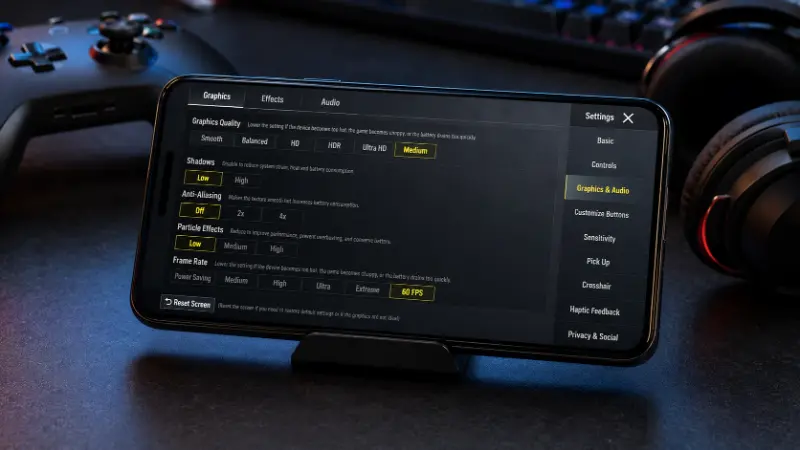
iOS plays by different rules, and a lot of Android advice simply doesn’t apply here.
- Confirm Game Mode is active. Since iOS 18, Game Mode activates automatically for supported games — it gives your game the highest priority access to CPU and GPU, cuts background activity, and even doubles the Bluetooth polling rate for controllers and AirPods to reduce input and audio lag. Check Control Center for the Game Mode indicator when you launch a game; if it’s not showing up, the specific title may not support it yet.
- Turn off Low Power Mode (Settings → Battery) — same throttling effect as Android’s Battery Saver.
- Disable Background App Refresh for apps you don’t need running while gaming (Settings → General → Background App Refresh) — it’s a small but real drain on the resources your game could be using.
- Cool the phone down the same way as Android — case off, out of direct sun, breaks on long sessions. Game Mode does not override thermal throttling; if the phone is hot, FPS drops regardless of any setting.
- Lower in-game graphics settings the same as Android — this still matters even with Game Mode on, since Game Mode manages system priority, not the rendering load itself.
Do FPS Booster Apps Actually Work?
Honestly — mixed, and it’s worth being straight about this instead of pretending they’re either magic or useless.
Real player feedback on popular booster apps shows a genuine split: some users report meaningful improvements (one PUBG Mobile player reported ping dropping from 80–100ms to 20–40ms after using one), while others report the same app doing very little for a different game, plus the ad load that comes with most free versions. Even the developers behind these apps are upfront in their own store listings that “effectiveness varies widely by device/OS and may have no effect on some devices.”
What booster apps are actually doing under the hood, in most cases: force-closing background apps and applying a Do Not Disturb profile — the same two things you can do manually in about 15 seconds, for free, without an ads-supported app running in the background itself. If you’re on a budget device and want a one-tap shortcut, they’re not harmful to try. But manually working through Steps 1–3 above will get you the same result without giving another app access to your device data.
Game-Specific Quick Reference
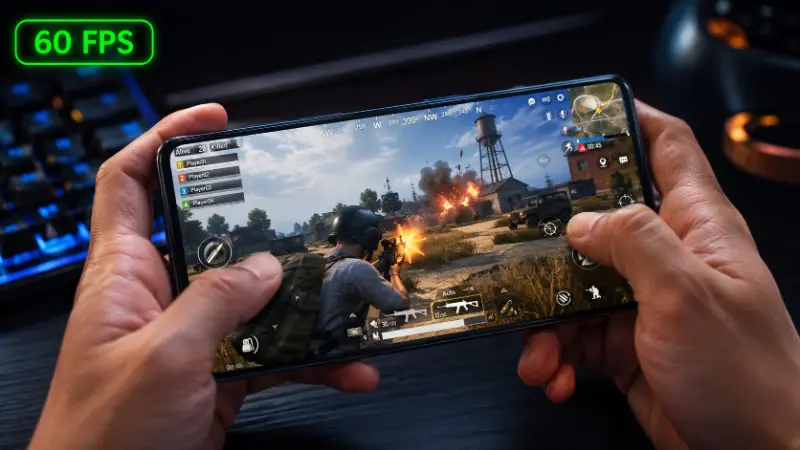
Different titles respond differently to these fixes. Here’s what to prioritize per game:
| Game | Priority Fix | Notes |
|---|---|---|
| PUBG Mobile / BGMI | Graphics preset + frame rate cap in-game settings | Full control and graphics settings breakdown here — frame rate options go up to Ultra/Extreme on supported chipsets |
| Call of Duty: Mobile | Lower Render Resolution before touching frame rate | Render Resolution has a bigger FPS impact than most other settings in this title |
| Genshin Impact / open-world titles | Cooling matters most | Long sessions = throttling risk; lower shadow quality first |
| Free Fire | “Smooth” or “Standard” graphics on entry-level devices | High FPS toggle can be reset if drops reappear mid-match |
| Roblox | In-app Graphics quality slider (Settings) | Roblox mobile doesn’t expose a true 120 FPS unlock the way PC does — performance is tied to device thermal/RAM more than a hidden toggle |
| Warzone Mobile | Storage and RAM headroom first | This title is unusually storage- and memory-hungry for a mobile game |
Playing Through an Emulator? Different Rules Apply
If you’re running PUBG Mobile, BGMI, or similar titles through GameLoop, BlueStacks, or MuMuPlayer on a PC, none of the phone-side advice above applies — you’re bottlenecked by your PC’s CPU/GPU and the emulator’s own render settings instead. That’s a separate optimization path (adjusting emulator resolution scale, allocated RAM, and graphics API) and deserves its own guide rather than a few bullet points bolted onto phone advice.
When a Setting Won’t Fix It: Knowing Your Hardware’s Ceiling
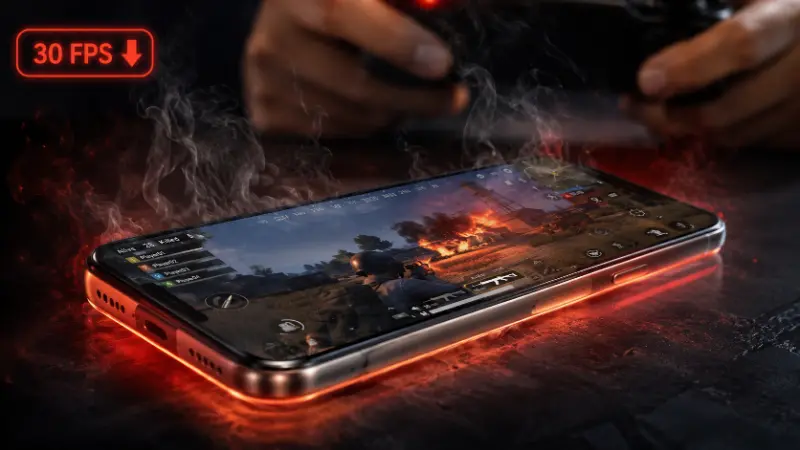
If you’ve worked through everything above and you’re still capped well below what the game supports, it may genuinely be a hardware limit rather than a settings problem — older or entry-level chipsets simply don’t have the GPU headroom for 90–120 FPS in demanding titles, no matter what you toggle. If you’re shopping for a genuinely capable budget option, chipset and cooling design matter far more than the RAM number on the box.
FAQ
How do I boost my FPS on mobile?
This is the core of how to increase FPS on any phone: lower in-game graphics settings first, turn off Battery Saver, enable your phone’s Game Mode, and close background apps. If you’re still capped after that, Android users can unlock Developer Options for deeper control; iOS users should confirm Game Mode is actually active for that specific title.
How do I get 120 FPS on mobile?
You need three things at once: a screen that supports a 120Hz refresh rate, a chipset powerful enough to sustain it without throttling, and a game that specifically offers a 120 FPS or “Ultra/Extreme” frame rate option in its own settings. Missing any one of the three means you’ll be capped lower regardless of other tweaks.
How do I get 60 FPS on mobile?
Most modern mid-range and flagship phones can hit a stable 60 FPS in the majority of mobile titles once background apps are closed, Battery Saver is off, and graphics settings are set to Medium rather than max. Set the frame rate target explicitly inside the game’s own video menu if it’s not already defaulting to 60.
How do I change my FPS on mobile?
The frame rate target lives inside the game’s own settings/video menu in almost every case — there isn’t usually a single phone-wide FPS switch. Android’s Game Dashboard can show you a real-time FPS counter to confirm what you’re actually getting once you’ve changed it.
Why does my Samsung phone lag in one specific game but not others?
Check whether that game is properly recognized inside the Samsung Game Booster app list. If it isn’t listed, Samsung’s system may be treating it like a regular background app instead of prioritizing it, which can cause more aggressive throttling than the phone’s hardware would otherwise need.
Is more RAM always better for FPS?
No — once you clear the minimum RAM a game needs, processor speed and cooling design matter more than additional RAM. A phone with better thermal management will often outperform a higher-RAM phone that throttles sooner.
Do FPS booster apps actually work?
Sometimes, but modestly, and results vary heavily by device — even the apps’ own store listings admit effectiveness isn’t guaranteed. Most of them just automate closing background apps and enabling Do Not Disturb, which you can do manually for free in under a minute.
Why does my FPS look stable but the game still feels laggy?
That’s almost always network jitter or poor frame pacing, not a frame rate problem — check your Wi-Fi band and connection stability before touching any graphics setting.