
Mobile Gaming Tips and Tricks: The Complete Beginner’s Guide to Playing Better and Fixing Lag on Android

“Prepare for frustration” is how one beginner summed up their first week of mobile gaming in a Reddit thread, and honestly, that’s a fair warning. You download the app everyone’s talking about, you’re excited, and ten minutes in your thumbs feel clumsy, your phone gets hot, the screen stutters right as a fight starts, and you lose to someone who — from what you can tell — wasn’t even trying that hard. One Quora answer to “how do I get better at PUBG Mobile” put it bluntly: step one is making sure your game isn’t lagging in the first place, because no amount of skill fixes a phone that’s fighting you.
That’s the real structure of this problem, and it’s why this guide covers both halves of it. First, get your Android phone actually running the game the way it’s supposed to. Then, build the skills that turn “not lagging” into “actually winning.” Skip either half and you’ll plateau.
Quick Answer: The Fastest Way to Play Better Right Now
If you only do five things before your next session:
- Turn on your phone’s built-in Game Mode / Game Booster / Game Dashboard
- Force-close background apps that sync constantly — WhatsApp, Instagram, and background music apps are common offenders
- Set in-game graphics to Smooth/Medium, not Max — stable beats pretty
- Connect to stable Wi-Fi rather than mobile data, and check your ping in the lobby before queueing
- Play one casual round first so your phone reaches a stable temperature before you queue ranked
Everything below explains the “why” and covers what to do when these aren’t enough.
New to Mobile Gaming? Start Here
If you’re genuinely new — not just new to optimizing your phone, but new to mobile gaming as a hobby — a few beginner questions come up constantly in gaming communities: what to play first, whether to bother with a controller, and how to not feel completely lost in your first week.
Pick one genre and go deep before spreading out. Beginners who bounce between a battle royale, a MOBA, and a puzzle game in the same week end up mediocre at all three. If competitive, fast-paced play appeals to you, battle royale titles like PUBG Mobile, BGMI, or Free Fire, and shooters like Call of Duty: Mobile, are the most common entry points. If you want something with a lower mechanical ceiling to start, strategy titles like Clash Royale or MOBAs like Mobile Legends: Bang Bang teach positioning and decision-making without demanding twitch reflexes on day one.
One regional note that trips up a lot of beginners: if you’re in India, PUBG Mobile itself is banned — BGMI (Battlegrounds Mobile India) is the region-specific release most players use instead. Same core game, different app.
Don’t skip the tutorial, even if it feels slow. Every mechanic you learn in a low-stakes tutorial is one less thing costing you a match later. Watching a short gameplay video or beginner guide for your specific game before jumping into ranked matchmaking saves hours of confused losses.
Set Up Your Phone Before You Ever Open a Game
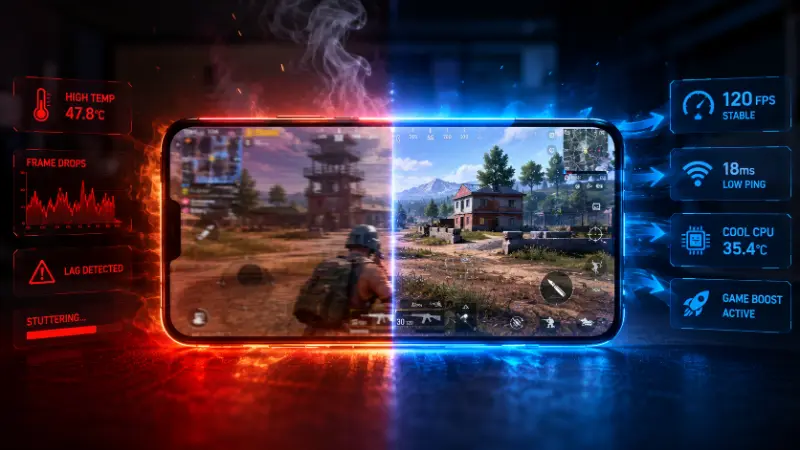
This is the “optimize Android for gaming” step, and it matters more than most beginners expect — a lot of what feels like “I’m just bad at this” is actually “my phone is fighting me.”
- Enable Game Mode / Game Booster / Game Dashboard. Nearly every Android phone has a built-in version of this under a name like Game Space, Game Booster, or Game Dashboard. It blocks pop-up notifications, frees up RAM, and prioritizes system resources for whatever you’re playing.
- Use stable Wi-Fi over mobile data when you can. Online multiplayer titles like PUBG Mobile, Free Fire, and Call of Duty: Mobile need a consistent connection — a weak signal causes high ping, packet loss, and mid-match disconnects.
- Keep 15–20% of your storage free. A nearly full phone has no room to manage temporary files efficiently, and that slows down everything, games included.
- Turn off Battery Saver / Adaptive Battery for your game specifically. Power-saving modes apply system-wide performance restrictions that throttle your CPU and GPU — exactly what you don’t want mid-match. Most phones let you set individual apps to “unrestricted” battery usage.
- Update your OS and your games. Outdated builds carry performance bugs that later patches quietly fix.
- Turn on Do Not Disturb, not just silent mode — a call notification can freeze your screen at the worst possible second.
Why Your Phone Actually Lags (the Real Causes)
Before jumping to fixes, it’s worth knowing what’s actually happening, because “lag” gets used for several different problems that need different solutions.
Thermal throttling. As your phone heats up, the processor automatically slows itself down to avoid damage. This typically starts to show up somewhere between 15 and 30 minutes into a demanding session — the game runs fine at first, then gets progressively choppier the longer you play. If your lag pattern is “fine for a while, then bad,” this is almost always the cause.
Insufficient RAM for the game. Modern competitive and open-world mobile titles generally want around 6–8GB of RAM to run smoothly. When RAM fills up, the system falls back to slower storage as virtual memory, which directly causes FPS drops and stutter.
Background apps eating resources. Apps like WhatsApp, Instagram, and background music players don’t fully stop when you switch away from them — they keep checking notifications, syncing data, and using location services, all of which competes with your game for CPU and RAM.
Network lag vs. device lag — these are not the same problem. Device lag shows up as stutter, frame drops, and slow touch response. Network lag shows up as delayed hit registration, rubber-banding, or your character seeming to teleport — and it’s often shown on-screen as a millisecond (ms) ping number. No amount of graphics tweaking fixes network lag; that needs a better connection.
Graphics settings mismatched to your hardware. Running max settings on a mid-range or budget phone forces the GPU to work far harder than it can sustain, which causes exactly the kind of dramatic FPS drop that ruins a fight.
Low storage and outdated software, covered above, both compound every other cause on this list.
How to Reduce Lag in Mobile Games — Step-by-Step
Once you know which type of lag you’re dealing with, the fix path is straightforward.
If it’s device lag (stutter, frame drops, slow response):
- Restart your phone if it’s been more than a day or two since the last restart
- Force-close every recent app, not just the ones you notice running
- Clear the game’s cache if you haven’t in a while — many live-service games quietly accumulate large texture and event files
- Lower in-game graphics to Smooth or Medium
- Take a short break if the lag started after 15+ minutes of play — this is thermal throttling, and cooling down is the actual fix, not a settings change
If it’s network lag (delayed hits, rubber-banding, disconnects):
- Check your ping in the lobby before queueing. As a rough benchmark: under 50ms is excellent, under 80ms is fully playable, and consistency matters more than the raw number — a steady 70ms beats a connection that jumps between 20ms and 200ms
- Switch to 5GHz Wi-Fi if your router supports it, or move closer to the router
- Avoid streaming or downloading on the same network while playing
- If jitter (an unstable, spiking ping) is the issue rather than a flat high number, the fix is about stability, not speed — try a different time of day if your household’s network gets congested during peak hours
A note on “booster” apps: most third-party lag-fix or booster apps don’t do anything your phone’s built-in Game Mode doesn’t already handle, and many add their own overlays and ads that make things worse. Start with the built-in tools before installing anything extra.
How to Increase FPS on Android
Frame rate is fundamentally a resource-allocation problem — you’re choosing what your phone’s limited GPU and CPU budget gets spent on.
- Lower the resolution if the game allows it. Rendering fewer pixels is one of the single biggest FPS gains available, often bigger than any individual graphics toggle.
- Choose Performance over Quality graphics presets. Most games let you pick between Quality (high, very high, ultra — heavy on textures, shadows, and lighting) and Performance (medium, low, very low). Performance mode trades visual detail for frame rate stability, which matters more in competitive play than looking pretty.
- Understand frame pacing, not just the FPS number. A game can report 60 FPS and still feel laggy if the frames aren’t arriving at even intervals — this is called frame pacing, and it’s a separate issue from raw frame rate. If your FPS counter looks fine but gameplay still feels stuttery, uneven frame pacing is the likely cause, and it’s usually improved the same way as thermal lag: lower settings and let the phone cool down.
- Match your refresh rate to what the game can actually sustain. A 90Hz or 120Hz display feels great, but if your phone can’t hold a frame rate that matches it, you’re just burning battery and generating heat for no smoothness benefit. Dropping to 90Hz can stabilize performance on games that can’t hold higher frame rates consistently.
- Turn off screen recording overlays unless you need them. Recording gameplay competes directly with the game for the same GPU resources.
Best Android Gaming Settings (Beyond the Basics)
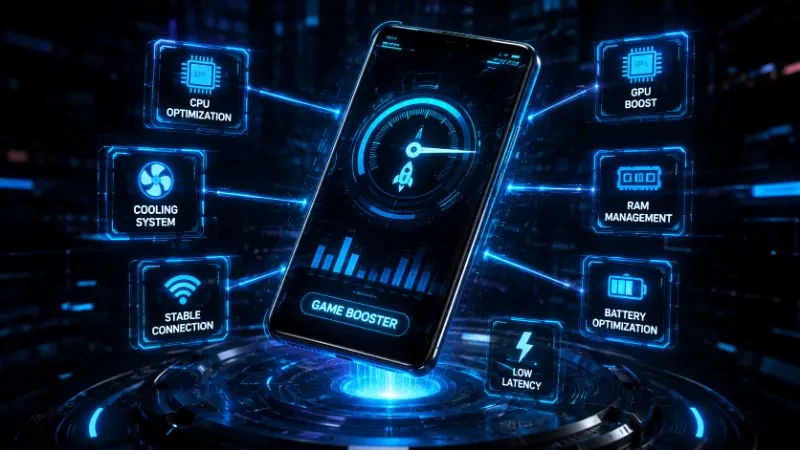
Once the fundamentals are handled, a few more advanced settings squeeze out extra headroom — useful once you know your basics are already solid.
Developer Options, for players who want finer control. Enable it by tapping the Build Number seven times inside About Phone. Worthwhile toggles:
- Force GPU Rendering — on, pushes more rendering work to the GPU where it belongs
- Disable HW Overlays — on during gaming sessions, frees the GPU from extra compositing work
- Background Process Limit — set to the strictest option before a session that matters
- Animation scale (Window/Transition/Animator) — dropping these to 0.5x makes the UI feel snappier, though it’s cosmetic rather than a real performance gain
One caution: don’t flip every toggle you find. Forcing maximum anti-aliasing settings, for instance, tends to overheat mid-range GPUs and drain battery far faster than the visual improvement is worth. Change one thing at a time and actually notice whether it helped.
Screen brightness — moderate, not maxed. Higher brightness is a real, measurable contributor to heat and battery drain over a long session; a slight reduction extends how long you stay in stable-performance territory.
Audio settings matter more than most beginners realize. Turn up sound effects — footsteps, reloads, vehicle engines — and turn down background music. In competitive shooters and battle royales specifically, audio cues are often the earliest warning you get that an enemy is near, earlier than you’ll see them on screen.
How to Get Better at Mobile Games — Skills That Actually Matter
This is the half of the equation settings alone can’t fix. Once your phone isn’t fighting you, here’s what actually moves your rank.
Tune your sensitivity deliberately, not by default. Most players never touch their general, red dot, and scope sensitivity settings separately, then wonder why their aim feels inconsistent. Spend one dedicated practice-mode session adjusting these until tracking a moving target feels natural.
Try claw grip or a controller if you’re serious. A common answer to “how do I actually get good” in gaming communities is switching from two-finger touch controls to a four-finger claw grip — it removes the hard ceiling on how many actions you can perform simultaneously (moving, aiming, and shooting all at once, for example). It takes real practice to feel natural, so don’t expect it to click in one session.
Gyroscope aiming has a genuinely higher skill ceiling than touch-only aim, even though it feels clumsy at first. It lets you make small, precise aim adjustments that pure thumb movement physically can’t replicate. Give it a real trial period — a few days minimum — before deciding it’s not for you.
Learn map knowledge, not just mechanics. In battle royale titles, understanding landing spots, loot routes, rotation timing, and where the safe zone is likely to shrink toward matters more at low-to-mid ranks than raw aim does. This is faster to improve than mechanical skill — a weekend of paying attention to the minimap teaches more than hours of mindless play.
Practice recoil control and target tracking in training modes, not live matches. Most competitive shooters include a practice range specifically for this — use it before you need it in a real fight.
Review your own matches, not just pro highlight reels. Pro gameplay is inspiring but abstract. Your own losses tell you exactly what to fix — usually a specific settings issue or a specific decision, not vague “bad luck.” Several experienced players specifically recommend post-game replay analysis as one of the fastest ways to improve.
Take on daily and weekly in-game challenges deliberately, not just for the rewards. They tend to be structured around specific mechanics the developers want you to practice, which makes them a built-in skill-building tool most players ignore.
If you’re coming from PC or console, expect a real adjustment period. Touch controls genuinely feel different from physical buttons and analog sticks, and it’s a completely normal, common experience to feel clumsy at first — it’s not a sign you’re bad at games, it’s a different input method that takes its own practice.
Play Smart, Stay Safe: Healthy Mobile Gaming Habits
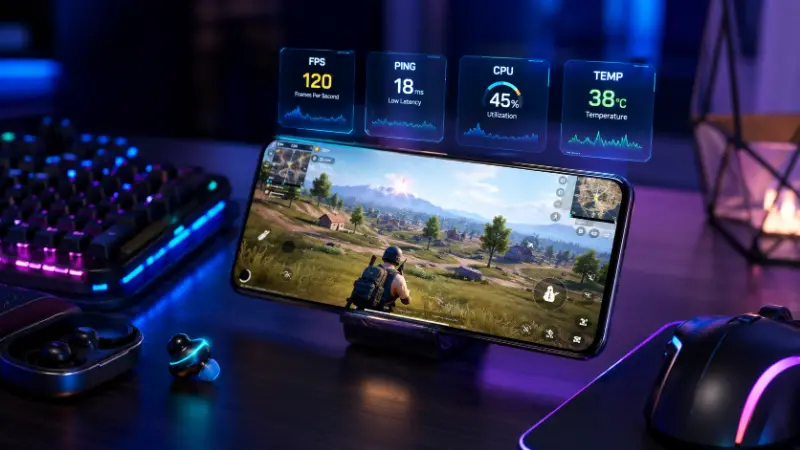
This part gets skipped in most technical guides, but it’s a real, common concern for people newer to mobile gaming — especially anyone starting out in games with open text or voice chat with strangers.
- Take a break every 30–45 minutes. This isn’t just about wellbeing — it also lines up with when thermal throttling typically kicks in, so a short break helps your performance too.
- Don’t share personal details with strangers in-game, even in friendly-seeming clan or guild chats.
- Don’t engage with toxic or harassing messages. Most games have a mute or report function for exactly this reason — use it rather than responding.
- Set a soft time limit for yourself, particularly for games designed around daily login streaks and reward loops, which are built to keep you playing longer than you might intend.
Mobile Gaming Performance Cheat Sheet
| Symptom | Most Likely Cause | Fastest Fix |
|---|---|---|
| Fine for a while, then stutters | Thermal throttling | Take a short break, remove case, lower brightness |
| Delayed hit registration, rubber-banding | Network lag, not device lag | Switch to stable Wi-Fi, check ping before queueing |
| Laggy from the very first minute | Background apps eating RAM | Force-close recent apps, enable Game Mode |
| FPS counter looks fine, game still feels stuttery | Uneven frame pacing | Lower graphics preset, let phone cool down |
| Performance degrades over weeks of use | Low storage / bloated cache | Free 15–20% storage, clear game cache |
| Aim feels inconsistent despite practice | Sensitivity never tuned | Dedicated practice-mode sensitivity session |
| Losing fights you should win | Positioning/map knowledge gap, not mechanics | Study rotations and safe-zone patterns |
Frequently Asked Questions
I’m completely new to mobile gaming — what should I play first?
Pick one genre and commit to it rather than sampling several at once. Battle royale titles (PUBG Mobile, BGMI, Free Fire) and shooters (Call of Duty: Mobile) suit players who want fast, competitive action. Strategy games (Clash Royale) or MOBAs (Mobile Legends: Bang Bang) are gentler entry points that reward decision-making over twitch reflexes.
Why does my phone only start lagging after 15–20 minutes of playing?
That delayed pattern is the signature of thermal throttling — your phone’s processor slows itself down as it heats up to avoid damage. The fix is cooling-focused: remove your case, lower brightness, and take a short break rather than changing settings.
My FPS counter shows 60 but the game still feels laggy. What’s wrong?
That’s likely a frame pacing issue rather than a frame rate issue — the frames are arriving unevenly even though the count looks fine. It’s a separate problem from raw FPS and usually improves with the same fixes: lower graphics settings and let the phone cool down.
Do I need an expensive gaming phone to play competitively?
No. Most lag on mid-range and budget phones traces back to storage, background apps, heat, and mismatched graphics settings — not a hardware ceiling. Fixing those closes most of the performance gap before hardware becomes the limiting factor.
Should I use claw grip, a controller, or the default two-finger controls?
Default controls are fine for casual play. If you’re aiming to get seriously competitive, claw grip or a clip-on controller removes the action-limit that two-finger controls impose — but expect a real adjustment period before it feels natural.
How do I tell if it’s my phone or my internet causing the lag?
Device lag feels like stutter, frame drops, and slow touch response, and often shows up more the longer you play (heat-related). Network lag feels like delayed hit registration or rubber-banding, and usually correlates with a high or unstable ping number on screen. If ping is stable and low but it still feels bad, it’s device-side; if ping is spiking, it’s your connection.
Is it normal to feel clumsy moving from PC or console to mobile controls?
Completely normal. Touch controls are a genuinely different input method from physical buttons and sticks — it’s not a sign of lacking skill, just a different set of muscle memory that takes its own practice period.
Is PUBG Mobile the same as BGMI?
They’re the same core game, but PUBG Mobile is officially banned in India, and BGMI (Battlegrounds Mobile India) is the separate, India-specific release most players there use instead.
Final Word
Mobile gaming performance comes down to a short list of things people rarely check in the right order: is your phone actually cool, is your storage actually free, is your connection actually stable, and have you actually tuned your own settings instead of using whatever came out of the box. Work through the technical side once, and most of what feels like bad luck in your matches turns out to be fixable in about fifteen minutes. From there, the skill side — sensitivity, positioning, and honest review of your own losses — is what actually moves your rank.