
How to Secure Your Wi-Fi Network From Hackers (2026 Guide)

Knowing how to secure your Wi-Fi network is one of the most important things you can do for your home, because it’s the front door to everything you own online — your bank accounts, your gaming accounts, your smart camera feed, your kid’s tablet. Leave it unsecured and you’re not just risking a slower connection from a freeloading neighbor; you’re risking someone reading your traffic, hijacking your devices, or using your connection for something you’ll get blamed for.
The good news: securing your home Wi-Fi properly takes about 20 minutes and doesn’t require any technical background. Here’s exactly what to do, why it matters, and — because a lot of you are reading this because your ping spikes mid-match, not because you read a cybersecurity report — how to do it without wrecking your gaming setup in the process.
Quick answer: to secure your Wi-Fi, change your router’s default admin login, enable WPA3 (or WPA2-AES if WPA3 isn’t available), set a strong unique Wi-Fi password, disable WPS, keep your firmware updated, and set up a separate guest network for visitors and smart devices. The full breakdown, plus the stuff most guides skip, is below.
How Hackers Actually Get Into Your Wi-Fi
Most guides jump straight to “change your password” without explaining what they’re protecting you from. Here’s how a network actually gets compromised, so the steps below make sense instead of feeling like arbitrary checkboxes.
- Default credential scanning. Every router ships with a default admin username and password (often literally “admin” and “password”). These are public, searchable by router model, and the first thing an attacker tries. If you’ve never changed yours, this is your biggest open door.
- WPS PIN brute-forcing. Wi-Fi Protected Setup was built for convenience — push a button, connect a device, no password needed. Its 8-digit PIN can be cracked through repeated guessing in a matter of hours on older routers, which is why security guidance from CISA and every major router manufacturer recommends disabling it.
- Weak or reused passwords. Short passwords or ones built from real words get broken through dictionary and brute-force attacks. Reused passwords are worse — if your Wi-Fi password matches a password that leaked from some other breached service, it’s already compromised.
- Packet sniffing on weak encryption. Older protocols (WEP, and to a lesser extent WPA) have known weaknesses that let someone intercept and read unencrypted traffic on your network. This is largely a non-issue on WPA2/WPA3, which is exactly why encryption type matters more than most people realize.
- Deauthentication attacks. An attacker can force a device to disconnect and reconnect, capturing the handshake data used to attempt to crack your password offline. This mostly matters on weaker encryption and weak passwords — another reason WPA3 and a strong passphrase matter together, not separately.
- Evil twin hotspots. This one’s mostly a public Wi-Fi problem, not a home network problem — a fake hotspot mimicking a real one to intercept your traffic. Covered in the public Wi-Fi section below.
None of this is exotic. Most home network breaches come from the first two items on this list — default credentials and WPS — because they require zero skill to exploit.
Step-by-Step: How to Secure Your Home Wi-Fi Network
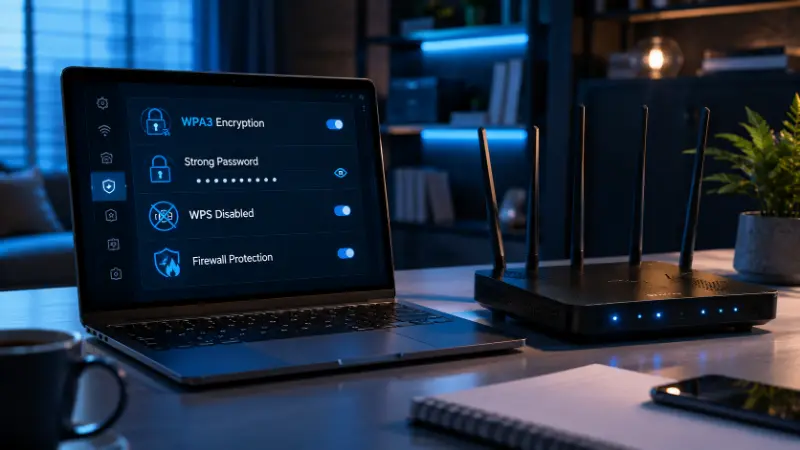
This core checklist follows the same fundamentals CISA outlines in its home Wi-Fi security guidance, in the order that actually matters most first.
1. Change your router’s default admin credentials. Log into your router’s admin panel (usually by typing an address like 192.168.1.1 or 192.168.0.1 into your browser — check the sticker on the router itself if you’re not sure). Go to the admin or security settings and set a new username and password. This is separate from your Wi-Fi password and just as important.
2. Enable WPA3 (or WPA2-AES if WPA3 isn’t available). In your wireless security settings, select WPA3-Personal if it’s offered. If you have older devices that won’t connect to WPA3, use WPA3/WPA2 mixed mode, or fall back to WPA2-AES. Avoid WEP and plain WPA entirely — both have known, exploitable weaknesses.
3. Set a strong, unique Wi-Fi password. Aim for a passphrase of at least 16 characters, mixing letters, numbers, and symbols throughout rather than tacking a number on the end. Don’t reuse a password from another account, and don’t use anything tied to your name, address, or birthday.
4. Rename your network (SSID). Change it from the factory default. Default names often reveal the router’s make and model, which narrows down what vulnerabilities an attacker might try. Don’t replace it with anything that identifies you personally either.
5. Disable WPS. Turn off Wi-Fi Protected Setup in your wireless settings unless you’re actively pairing a device and plan to re-disable it right after.
6. Keep your firmware updated. Firmware updates patch the exact vulnerabilities attackers rely on. Enable automatic updates if your router supports them; if not, check manually every month or two under the admin panel’s “firmware” or “maintenance” section.
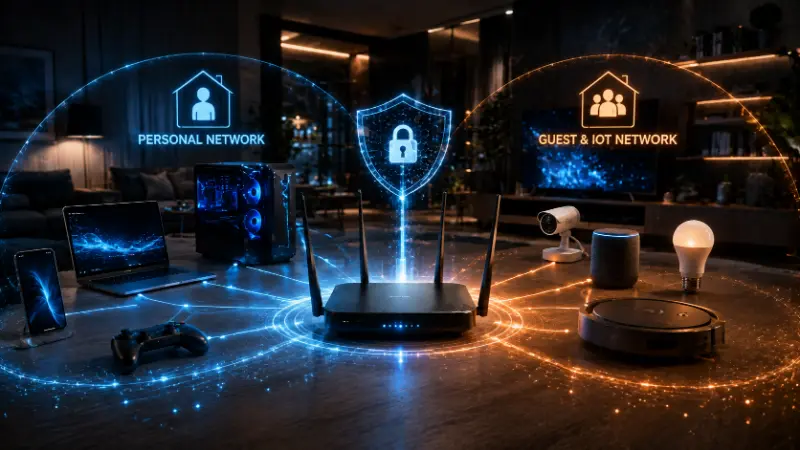
7. Set up a guest network. Give visitors — and any smart devices you don’t fully trust — their own isolated network, separate from the one your main devices and any sensitive data live on.
8. Disable remote management. Unless you specifically need to access your router’s settings from outside your home, turn this off. It closes a door that doesn’t need to be open.
9. Confirm your firewall is enabled. Most routers have a built-in firewall on by default, but it’s worth checking under advanced or security settings. If your router has separate IPv4 and IPv6 firewall toggles, enable both.
MAC address filtering is worth a mention here too — some routers let you allow-list specific devices by their hardware address. It adds a layer, but it’s not a strong standalone defense, since MAC addresses can be spoofed by anyone who’s already sniffing your traffic. Treat it as a bonus, not a pillar.
The Gamer’s Dilemma: UPnP, Port Forwarding, and Security
Here’s the section most security blogs skip entirely, and it’s the one that actually matters if you’re reading this from a gaming site.
Every generic Wi-Fi security guide tells you to disable UPnP (Universal Plug and Play). They’re not wrong — UPnP lets devices and applications open ports on your router automatically, without asking, and that’s a real attack surface if something malicious on your network decides to use it. But UPnP is also what a lot of consoles and games rely on to get an Open NAT type for smoother matchmaking and voice chat.
You don’t have to choose between security and a good connection. A few practical options:
- Use manual port forwarding instead of UPnP. Forward only the specific ports your console or game needs (these are published by the platform — search “[your console] port forwarding” for the current list) and leave UPnP off. This gets you the same NAT improvement without leaving an automatic port-opening feature running in the background.
- If you do need UPnP on, isolate the devices that use it. Put your console or gaming PC on its own network segment where possible, so even if UPnP gets abused, it’s not opening a door to your laptop or work devices too.
- Re-check your NAT type after making security changes. Disabling UPnP or moving to a guest network can sometimes drop you back to a Strict or Moderate NAT type — that’s a normal trade-off, and manual port forwarding is how you get it back to Open without reopening the automatic risk.
On DDoS and “IP grabbing”: this is a real concern in competitive gaming and streaming circles, and it typically comes from your IP being exposed through peer-to-peer game connections or through voice chat services that route audio directly between players rather than through a server. A few things actually help:
- Avoid direct P2P voice chat tools where it’s not necessary; platform-hosted voice (in-game, Discord’s server-routed calls rather than direct calls) exposes your IP far less than direct connections do.
- If you’re a streamer or competitive player who’s been targeted before, ask your ISP about DDoS protection — many now offer it, and some routers have basic DDoS mitigation built in.
- A VPN can mask your IP from other players in a P2P connection, which is the main reason gamers use one defensively, separate from the general privacy reasons everyone else uses one for.
On VPNs and ping: a VPN adds a hop between you and the game server, and that generally means added latency — sometimes negligible, sometimes noticeable, depending on the VPN server’s location relative to the game server. If you’re using a VPN for security reasons on your home network, look for one with servers close to your usual game region, and test your ping with it on before deciding whether the trade-off is worth it for competitive play. For account and payment security while browsing or using apps, the latency hit rarely matters; for ranked matches, it’s worth testing first.
Is Your Wi-Fi Already Hacked? Signs to Check
If you’re worried your network is already compromised rather than just unsecured, check for these:
- Devices connected to your network that you don’t recognize (check your router’s connected devices list in the admin panel)
- Your internet suddenly feels slower, or you’re seeing ping spikes and packet loss that weren’t there before, especially at times when your own household shouldn’t be using much bandwidth
- Your router restarts on its own, or settings you didn’t change (network name, password, DNS settings) show up different from what you set
- You’re locked out of your own admin panel, or your admin credentials no longer work
- You get a login notification or alert for your router account from a location or device you don’t recognize
If you spot any of these, change your Wi-Fi password and admin credentials immediately, then work through the checklist above from the top.
How to Protect Your Wi-Fi From Neighbors
If you suspect someone nearby is piggybacking on your connection rather than actively attacking it, the fix is mostly the same checklist above, with two additions:
- Check your router’s connected-devices list for anything unfamiliar and disconnect it, then immediately change your Wi-Fi password so it can’t reconnect
- Reduce your router’s broadcast strength if it offers that setting, and position the router centrally in your home rather than near an exterior wall or window — this shrinks how far your signal actually reaches outside your house
A strong WPA3 password with the default credentials changed solves the vast majority of piggybacking cases outright, since most casual network-borrowing relies on either a known default password or an easily guessed one.
Securing Wi-Fi Extenders and Mesh Systems

This gets skipped by almost every Wi-Fi security guide, but it’s a real gap: an extender or mesh node is a second device with its own admin access, and it doesn’t automatically inherit every security setting from your main router just because it’s relaying the same network.
- Change the extender’s own default admin credentials, separately from your router’s
- Make sure the extender is set to the same encryption standard (WPA3 or WPA2-AES) as your main network — some ship defaulting to a weaker setting for backward compatibility
- Keep the extender’s firmware updated on its own schedule; it doesn’t always update automatically alongside your router
- Don’t leave the extender broadcasting its own default network name — either merge it into your main network’s SSID (most modern mesh systems do this automatically) or rename it to match your naming convention
An extender itself doesn’t inherently compromise your security, but an unconfigured one is effectively a second unlocked door into the same house.
Securing Other Devices on Your Network
Your router is the front door, but every device connected to it is a room with its own lock — or lack of one.
- Smart cameras: change the default password immediately, keep firmware current, and where possible, put cameras on your guest or IoT network rather than your main one, since they’re a common target and shouldn’t have a path to your personal devices if compromised.
- Network printers: these get overlooked constantly. A printer left on the main network with no access restrictions can often be reached by anyone on the Wi-Fi, sometimes even without a password — which is why “someone kept printing to my printer” is a more common complaint than people expect. Restrict printer access to trusted devices where your printer’s settings allow it, and keep it off the guest network’s reach for anyone outside your household.
- General rule: any device is only as secure as its own password and firmware, regardless of how locked-down your router is. A strong router with a wide-open smart plug still has a wide-open point of entry.
Securing Your Home Network for Remote Work
If you’re working from home and your employer expects a certain security standard, the core checklist above covers most baseline requirements — but a few additions matter specifically here:
- Use your employer’s VPN for work traffic, separate from any personal VPN use
- Keep work devices logically separated from personal and gaming devices where your router allows network segments or VLANs, even if you don’t put them on the guest network specifically
- Follow your employer’s specific security policy where it’s stricter than general guidance — some organizations require settings (like disabling remote management entirely, or specific encryption minimums) that go beyond general home use
How to Safely Use Public Wi-Fi
Public Wi-Fi is a different threat model from your home network, since you don’t control the router or who else is on it. The short version:
- Use a VPN whenever you’re on public Wi-Fi, especially before logging into anything sensitive
- Avoid accessing banking or entering payment details on open networks without a VPN active
- Watch for evil twin networks — fake hotspots with names similar to the legitimate one, set up to intercept traffic. If a location has two similarly named networks, ask staff which one is real before connecting
- Forget the network on your device after you’re done, so your phone doesn’t auto-reconnect later to a network you no longer trust
- If your phone has a built-in secure Wi-Fi or VPN feature (several Android phones include one), it’s a reasonable baseline layer, though it doesn’t replace a dedicated VPN for sensitive activity
This deserves its own deeper guide if you’re a frequent traveler — the short version above covers the essentials for everyday use.
Frequently Asked Questions
How do I make my Wi-Fi more secure?
Change your router’s default admin login, enable WPA3 (or WPA2-AES), set a strong unique password, disable WPS, keep firmware updated, and set up a guest network. Those steps close the vast majority of common attack paths.
What are the signs that your Wi-Fi is hacked?
Unrecognized devices on your network, sudden slowdowns or ping spikes, a router that restarts on its own or has settings you didn’t change, or being locked out of your own admin panel.
Can I restrict someone from using my Wi-Fi?
Yes. Check your router’s connected-devices list, disconnect anything unfamiliar, and change your Wi-Fi password immediately after so the device can’t automatically reconnect. MAC address filtering can add a layer on top, but shouldn’t be your only defense.
How do I put a password on my Wi-Fi?
Log into your router’s admin panel, go to your wireless or security settings, and set a password under WPA3 or WPA2-AES encryption. Avoid leaving it open or using outdated WEP encryption.
Does a Wi-Fi extender create a security risk?
Not inherently, but it needs its own default credentials changed and its own encryption and firmware kept current — it doesn’t automatically match every setting on your main router.
Should I use WPA2 or WPA3?
Use WPA3 if your router and devices support it. If some older devices can’t connect, use WPA3/WPA2 mixed mode rather than dropping to WPA2 entirely, so newer devices still get the stronger protection.
How often should I change my Wi-Fi password?
There’s no strict universal timeline, but change it immediately if you see unfamiliar devices connected, and consider a routine change every six to twelve months as general hygiene.
Is it safe to use public Wi-Fi with a VPN?
It’s significantly safer than without one. A VPN encrypts your traffic so it can’t be easily intercepted on a shared or unknown network, though you should still avoid entering sensitive information on networks you don’t trust at all.
Related: best VPN for beginners, best password manager, best Chrome extensions