
Best Emulator for Android Games on PC: The 2026 Guide (Tested, Not Guessed)

If you’ve searched for the best emulator for Android games on PC before, you’ve probably landed on a list that ranks eight emulators by vibes and calls it a day. This one’s different — it’s built around what people actually get stuck on: which emulator won’t get your PUBG Mobile account flagged, which one won’t choke your 8GB laptop, and which one to use now that Windows quietly killed its own built-in solution.
Short answer first: For most people, BlueStacks is still the safest, most compatible pick — it runs the widest range of games without drama. If you’re playing competitive shooters like PUBG Mobile, Call of Duty Mobile, or Free Fire, GameLoop is the one built specifically for them, because Tencent — the company behind those games — makes it. If your PC is older or lower-spec, MuMu Player gives you the best performance without eating your whole system. LDPlayer sits in between: strong for gaming, lighter than BlueStacks, and a favorite among players chasing lower input lag.
None of these are wrong choices. Which one is right depends on what you’re playing and what you’re playing it on — so let’s get into that instead of pretending one emulator wins at everything.
Wait — Do You Want to Run Android Games on PC, or PC Games on Android?
Quick gut-check before you download anything, because search results for this topic have started mixing two completely different tools together.
- Android games on PC (what this guide covers): BlueStacks, LDPlayer, MuMu Player, GameLoop, NoxPlayer, MEmu. These simulate an Android phone on your Windows computer so you can play mobile games with a mouse, keyboard, or controller.
- PC games on Android (the opposite direction): tools like Winlator or GameHub, which let you run actual Windows games on your Android phone or tablet. If that’s what you’re after, that’s a different setup entirely and not what’s covered here.
If you’re looking for the best emulator for Android games on PC to play something like Genshin Impact, PUBG Mobile, or a gacha game on your desktop, you’re in the right place. Keep reading.
Best Emulator for Android Games on PC — Compared
| Emulator | Best For | Android Version | RAM Needed | Ads | Notable Trait |
|---|---|---|---|---|---|
| BlueStacks 5 | Overall compatibility, biggest game library | Android 11 (Android 13 in beta) | 4–8 GB | Yes, can be reduced | Widest game support of any emulator; most community support if something breaks |
| LDPlayer 9 | Competitive/FPS gaming | Android 9 | 4–8 GB | Minimal | Popular for lower input lag in shooters; lighter than BlueStacks |
| MuMu Player 12 | Low-to-mid-range PCs | Android 12 | Lower footprint than BlueStacks | Ad-free on Windows | Modern Android base, clean interface, good for weaker hardware |
| GameLoop | PUBG Mobile, COD Mobile, Free Fire specifically | Varies by title | Lightweight | Some | Built by Tencent for Tencent-published games; some titles’ anti-cheat expects it |
| NoxPlayer | Multi-instance / strategy games | Android 9 | 4–8 GB | Moderate | Runs several accounts side by side; had a past security incident (details below) |
| MEmu Play | Deep customization | Android 5.1–12 | 4–8 GB | Moderate, full-screen | Most granular performance settings of the mainstream options |
| Google Play Games (PC) | Ad-free, official Google option | Native | 8 GB+ | None | Cloud-save syncing with your phone; doesn’t support every title |
This lines up with what’s actually showing up in search and video results right now — BlueStacks, LDPlayer, MuMu, and GameLoop are the four names that keep coming up together across current comparison videos and community threads, with Google Play Games as the official wildcard.
Best Emulator for PUBG Mobile, COD Mobile, and Free Fire
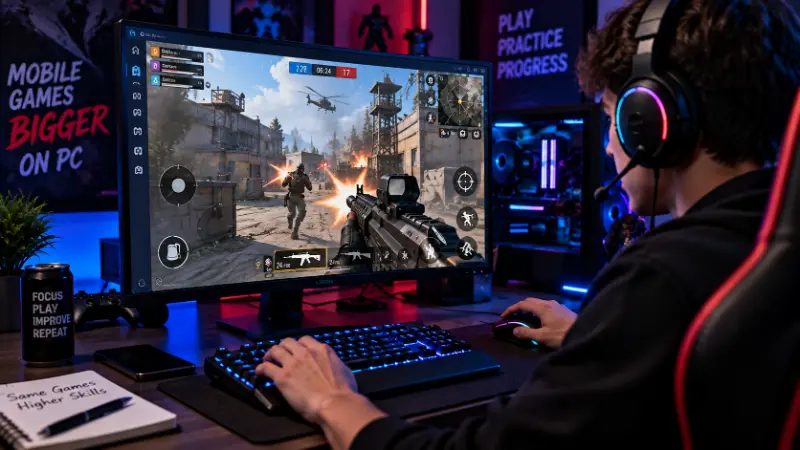
This is one of the most common reasons people search for an emulator in the first place, and it deserves a straight answer instead of a generic “BlueStacks works for everything.”
GameLoop is the emulator Tencent itself built for these games — it used to be called Tencent Gaming Buddy before the 2019 rebrand, and a lot of long-time players still call it that out of habit. Since Tencent also develops PUBG Mobile and publishes titles like Call of Duty Mobile, GameLoop tends to get day-one optimization and game-specific tuning that third-party emulators have to catch up to.
That said, plenty of players use BlueStacks or LDPlayer for these same games without issues — the real question isn’t “which emulator is fastest” so much as “which emulator won’t get you flagged.” Here’s the part most guides skip:
- Games with strict anti-cheat (PUBG Mobile in particular) have, at points, treated matchmaking differently for players on non-Tencent emulators versus GameLoop, based on long-running community reports.
- This isn’t a permanent ban risk for casual play, but if you’re grinding ranked and want the smoothest matchmaking experience, GameLoop is the lower-friction choice specifically for Tencent’s own titles.
- For non-Tencent games (most gacha, RPG, and strategy titles), this concern doesn’t apply — use whichever emulator fits your hardware.
If you’re setting up control schemes once you’ve picked an emulator, our guide on PUBG Mobile control settings walks through sensitivity and layout, and if you’d rather use a physical controller instead of keybinds, here’s how to play PUBG Mobile with a controller.
Best Emulator for a Low-End or Older PC
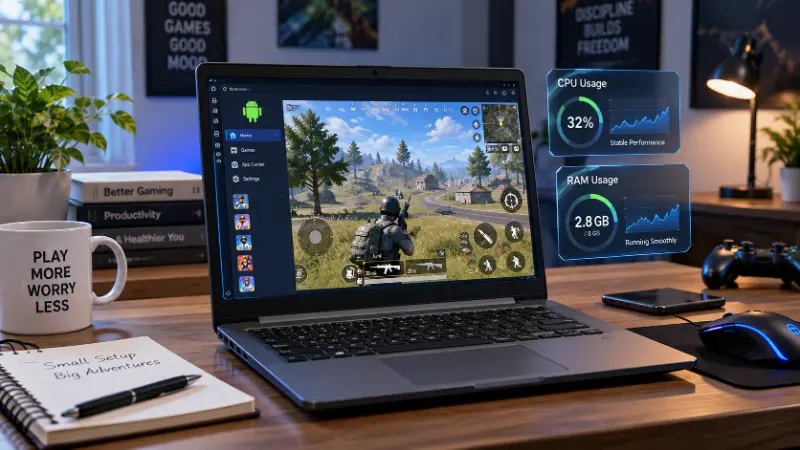
If your laptop is a few years old or you’re working with 4–8GB of RAM, most “best emulator” lists quietly assume you have a gaming PC. You probably don’t, and that’s fine — you have real options.
MuMu Player is currently the strongest pick here. It holds CPU usage close to BlueStacks while using noticeably less RAM, which matters a lot when 12GB of your 16GB is already spoken for by Windows and your browser. LDPlayer is the second solid option — it was built gaming-first and tends to run lighter than BlueStacks out of the box.
You may also come across older names in your search results — Phoenix OS, Remix OS, SmartGaGa, YouWave — from years-old forum threads about running PUBG Mobile on very low-spec machines. These were relevant answers years ago, but they’re rarely the recommendation today; the mainstream emulators above have absorbed most of their low-resource use case and receive far more consistent updates. If you see one of these names in an old thread, treat it as outdated rather than current advice.
Before blaming the emulator for lag, check the basics first — this fixes the majority of “why is my emulator laggy” complaints:
- Virtualization (Intel VT-x or AMD-V) enabled in your BIOS — this alone solves most performance complaints
- RAM/CPU cores allocated to the emulator match your system’s actual headroom, not just maxed out
- GPU drivers updated
- In-game FPS/resolution setting dropped one notch before assuming your hardware can’t handle it
Our general guide on reducing lag in mobile games covers more of this from the in-game settings side, which pairs well with emulator-side tuning.
What’s the Actual Difference Between LDPlayer, Nox, MEmu, and BlueStacks?
This gets asked constantly, and the honest answer is: less than the marketing suggests. All four exist to solve the same core problem — Android games are built for ARM processors, and your PC’s processor is x86. Each emulator runs a translation layer that converts ARM instructions into something your PC’s CPU can execute, then adds its own layer of gaming features (keymapping, multi-instance, macros) on top of that shared foundation.
Where they actually diverge:
- BlueStacks — widest compatibility, most community troubleshooting content if you hit a wall, but the heaviest on resources
- LDPlayer — leaner, gaming-focused, popular for its lower input lag in shooters
- NoxPlayer — strong multi-instance support for running several game accounts at once, but had a real security compromise in 2021 (patched since, but worth knowing before you install an old cached version)
- MEmu — the deepest performance customization of the four, at the cost of a steeper settings menu
None of them are “fake” versions of each other — they’re built on similar underlying tech with different priorities layered on top.
Common Problems and How to Actually Fix Them
“My emulator keeps lagging or dropping frames”
Almost always BIOS virtualization, RAM allocation, or an outdated GPU driver — see the low-end PC section above before assuming your emulator is broken.
“It’s using 8-12GB of RAM and slowing down my whole PC”
This is a known BlueStacks complaint specifically under heavy gaming load. If it’s a dealbreaker, MuMu Player is the lighter alternative built for exactly this problem.
“Windows Subsystem for Android doesn’t work anymore”
This isn’t a bug on your end — Microsoft officially discontinued WSA on March 5, 2025, and there’s no native Microsoft-provided way to run Android apps on Windows 11 anymore. If you used to rely on it, you now need a third-party emulator like the ones above; there’s no going back to the built-in option.
“The game won’t install or crashes immediately on launch”
Usually a mismatch between the Android version your emulator runs and what the game requires. LDPlayer, NoxPlayer, and GameLoop are still built on older Android versions (Android 9 or earlier) by default, while BlueStacks and MuMu run newer ones (Android 11–12). If a newer or frequently-updated game refuses to install, this is the first thing to check.
Is It Safe? Is It Legal?
Legally, yes — Android is open source, and running it on your PC through emulation software breaks no law anywhere. That part isn’t in question.
Safety is a little more nuanced, and this is where a lot of guides go quiet:
- NoxPlayer suffered a real security compromise in 2021 where its update servers were used to distribute malware. It’s been patched and the company addressed it, but it’s a documented incident, not a rumor.
- LDPlayer was previously bundled with opt-out (not opt-in) antivirus software in some installers — also since addressed, but a reason to always download directly from the official site rather than a mirror.
- KOPlayer, an older emulator that’s now largely inactive, has had malicious copycat download sites appear in search results, some bundling keyloggers. If you see KOPlayer recommended anywhere in 2026, treat it with suspicion — it’s not actively maintained.
The practical takeaway: stick to official download pages, keep whichever emulator you choose updated, and consider using a secondary Google account for gaming/emulator use rather than your primary one — a small habit that costs nothing and removes most of the actual risk.
On the ban-risk side specifically: emulator use itself isn’t illegal, but individual games set their own rules. PUBG Mobile and similar competitive titles have anti-cheat systems tuned around emulator detection, and while casual use is broadly tolerated, always check a specific game’s current terms of service if you’re playing ranked or competitively — this changes more often than people expect, and “it was fine last season” isn’t a guarantee.
How to Choose — Quick Decision Guide
- You play PUBG Mobile, COD Mobile, or Free Fire competitively → GameLoop
- You want the widest game compatibility with the least troubleshooting → BlueStacks
- Your laptop is older or under 16GB RAM → MuMu Player
- You’re chasing the lowest input lag for shooters generally → LDPlayer
- You run multiple accounts for gacha or strategy games → NoxPlayer or MEmu
- You want zero ads and official Google backing, and your game is supported → Google Play Games for PC
If you’re building out a broader setup — controller mapping, developer options for smoother performance, or just want more of this kind of breakdown — our gaming tips and tricks hub and the developer options settings guide are good next stops, and if you’re curious how emulator play stacks up against competitive scenes, we’ve also covered the state of mobile esports.
Frequently Asked Questions
What is the best emulator for Android games on PC in 2026?
There isn’t one universal winner — BlueStacks offers the widest compatibility for most players, GameLoop is purpose-built for PUBG Mobile and other Tencent-published games, MuMu Player is the strongest choice for lower-spec PCs, and LDPlayer is favored for competitive shooters where input lag matters most.
What’s the best free Android emulator for PC?
BlueStacks, LDPlayer, MuMu Player, NoxPlayer, and GameLoop are all free to download and use, with optional paid tiers that mainly remove ads or add extra customization — none require payment for core functionality.
What’s the best emulator for low-end PCs?
MuMu Player currently offers the best balance of performance and resource usage for weaker hardware, with LDPlayer as a strong second option. Older recommendations like Phoenix OS or SmartGaGa are largely outdated at this point.
Which emulator is best for PUBG Mobile specifically?
GameLoop, built by Tencent (the company behind PUBG Mobile), tends to offer the smoothest experience and matchmaking for that specific game and other Tencent-published titles like Call of Duty Mobile.
Is it safe to use an Android emulator on PC?
Generally yes, as long as you download directly from the official source. NoxPlayer had a real malware incident in 2021 (since patched) and LDPlayer previously bundled opt-out antivirus software (also addressed) — both are reasons to avoid third-party mirror downloads regardless of which emulator you pick.
Can I still use Windows Subsystem for Android?
No — Microsoft discontinued WSA on March 5, 2025, and there’s no official Microsoft alternative on Windows 11 anymore. A third-party emulator is now required to run Android apps on Windows.
What’s the actual difference between LDPlayer, NoxPlayer, MEmu, and BlueStacks?
All four use a similar underlying approach — translating ARM-based Android instructions to run on your PC’s x86 processor — and differ mainly in resource usage, multi-instance support, and which gaming features they layer on top. They’re closer cousins than direct competitors with unique technology.
Can emulator use get my game account banned?
Using an emulator itself isn’t illegal, but individual games set their own rules, and some competitive titles’ anti-cheat systems specifically watch for emulator use. Always check the current terms of service for the specific game you’re playing, especially before ranked or competitive play.