How to Use Canva: The Complete 2026 Guide (Free Plan, Pro, Templates, and What You’re Actually Allowed to Do With It)

If you’ve never opened Canva before, here’s the short version: go to canva.com or download the app, sign up free, click “Create a design,” pick a template or a blank canvas, drag in text and graphics from the panel on the left, then hit Share > Download when you’re happy with it. That’s genuinely the whole loop. Everything else in this guide is what happens once you actually start using it — the parts that trip people up, the parts nobody explains clearly, and the one topic almost every other Canva guide skips entirely: whether you’re legally allowed to use what you make.
I’m going to walk through all of it. What Canva actually is, how to use the free plan properly, when Pro is worth paying for, how to get it free through school, why some of those “$1 Canva Pro” deals floating around are a bad idea, and — the section with the most riding on it — what you can and can’t do with Canva content once you’ve made something you want to sell or publish.
What Is Canva, Exactly?
Canva is a browser-based (and app-based) design tool that lets you build graphics, presentations, videos, and printed materials by dragging and dropping elements onto a page, instead of using layer-based software like Photoshop or Illustrator. It was built specifically so people with zero design training could produce something that looks professional. You don’t need to understand color theory or typography rules — Canva’s templates already have that baked in. You’re mostly rearranging, swapping, and customizing rather than building from nothing.
It works for social media posts, flyers, resumes, presentations, YouTube thumbnails, business cards, posters, invitations, logos, videos, and a genuinely huge range of print products. If a marketer, teacher, small business owner, or club organizer needs a visual, there’s a decent chance Canva can make it.
Is Canva Free?

Yes — genuinely free, not a trial. Canva’s free plan has no expiry date and doesn’t ask for a credit card. You get access to the drag-and-drop editor, hundreds of thousands of free templates, a large library of free stock photos and graphics, basic AI tools, real-time collaboration, and enough export options to actually finish and download a project.
The catch is that Canva’s paid content is mixed directly into the same search results as the free content. When you’re browsing templates or elements, anything with a small gold crown icon in the corner is Pro-only — you can use it, but it’ll either be watermarked or ask you to pay a small one-off fee (usually around a dollar) unless you’re subscribed to Pro. Everything without the crown is fair game on the free plan, no strings attached.
How to Use Canva for Free: Step by Step
1. Sign up
Go to canva.com or open the Canva app and create an account with your email, Google account, or Apple ID. No payment details required at this stage.
2. Start a design
Click “Create a design” in the top corner, or just type what you’re making into the search bar — “Instagram post,” “flyer,” “resume,” whatever it is. Canva will show you a set of pre-sized templates built for that exact format, which saves you from guessing dimensions.
3. Pick a template or start blank
Templates on the left panel give you a finished layout you customize. If you’d rather build from nothing, choose “Custom size” and set your own dimensions — useful if you’re making something Canva doesn’t have a preset for.
4. Learn the four tabs that matter most
- Elements: shapes, icons, illustrations, stock photos, charts, and stickers you can drag onto your page.
- Text: pre-styled text boxes and font combinations, or a plain text box you format yourself.
- Uploads: your own photos, logos, or videos, once you drag them in.
- Brand (Pro only): your saved brand colors, fonts, and logo, so you’re not re-uploading them every project.
5. Customize
Click any element to move, resize, recolor, or delete it. Click into any text box to edit the words, change the font, or adjust size and spacing. Small purple guide lines appear when something’s centered or aligned with another element — that’s Canva helping you avoid crooked layouts.
6. Download or share
Click Share in the top right, then Download. Pick your file type — PNG and JPEG for most digital use, PDF for print or documents that need to stay editable-looking, MP4 for video. That’s your finished file.
That’s the entire mechanical process. The real skill in Canva isn’t clicking the right buttons — it’s what you do once you’re inside it, which is where most beginners actually get stuck.
What Actually Trips Beginners Up
A lot of “Canva tutorials” stop after step six above and act like that’s the whole story. It isn’t. Here’s what real first-time users run into, based on what people are actually asking in Canva’s own community forums.
“I just got Canva Pro. Where do I even start?”
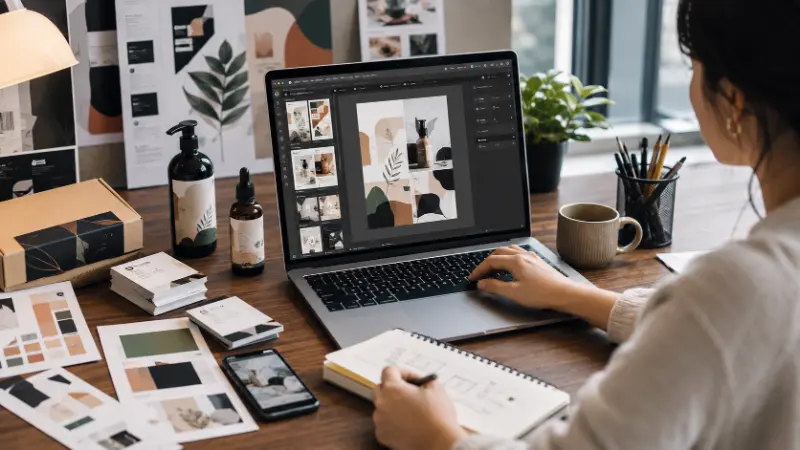
This is one of the most common posts from brand-new users, and it makes sense — Pro unlocks so much at once (Brand Kit, premium templates, Background Remover, animations, more AI credits) that it can feel more overwhelming than the free plan, not less. If this is you: ignore most of it for your first project. Pick one template, finish one design start to finish, and only explore the extra Pro features once you’ve completed something.
“I have zero experience with anything artistic.”
This comes up constantly, and it’s the exact audience Canva is built for. You don’t need an eye for design to get a decent result — you need to trust the templates more than your instinct to redesign everything from scratch. The fastest way to get a bad result in Canva is to abandon a well-designed template and start rearranging everything yourself before you understand why it was laid out that way in the first place.
Templates look generic once you notice everyone uses the same ones
This is a real, common complaint, especially in marketing and small-business circles — because millions of people have access to the exact same free template library, a popular one can start looking recognizable. The fix isn’t avoiding templates; it’s changing more than the text. Swap the font pairing, change the color palette to your own brand colors, replace stock photos with your own, and resize or rearrange at least one or two elements. Small changes are usually enough to stop a design from looking like a template.
Should You Upgrade to Canva Pro?
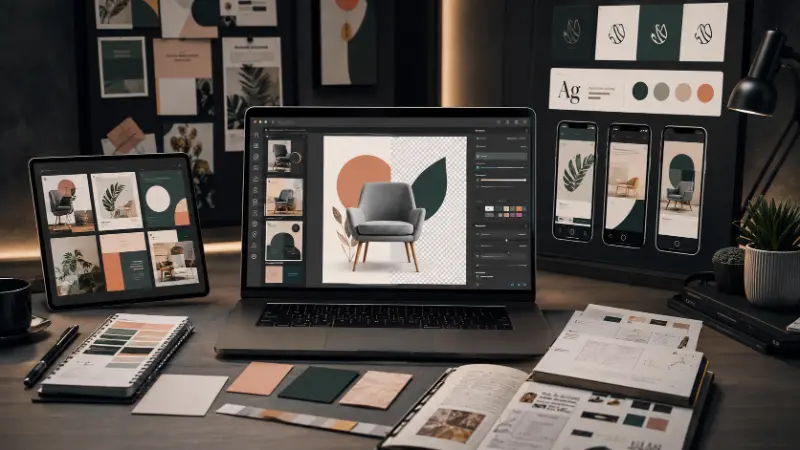
Here’s what Pro actually adds on top of the free plan, and what each thing is genuinely useful for:
- Brand Kit: stores your logo, brand colors, and fonts so every design pulls from the same set automatically. Worth it the moment you’re making more than a couple of designs for the same brand or business.
- Background Remover: removes the background from any photo in one click. This alone justifies Pro for a lot of people who make product photos or YouTube thumbnails regularly.
- Magic Resize: turns one finished design into every other social media size instantly, instead of rebuilding it from scratch for each platform.
- A much larger premium template, photo, video, and audio library.
- More cloud storage (100GB on Pro vs. 5GB on Free).
- Higher AI usage limits through Canva’s Magic Studio tools (Magic Write for text generation, Magic Design for auto-generated layouts, Magic Media for AI image and video generation).
What Canva Pro Actually Costs in 2026
As of 2026, Canva Pro costs $18 per month billed monthly, or $144 per year if billed annually — which works out to about $12 a month, roughly a third cheaper than paying monthly. Worth knowing: Canva has raised the Pro price twice in recent years, from $12.99 up to $15, and then to $18, so if you’ve seen an older article quoting a lower number, that’s why it doesn’t match what you’ll actually be charged today. Canva also runs frequent first-year promotions (often 40-50% off) for new subscribers, so what you pay in year one is often below the list price.
There’s also a Business plan (the renamed version of what used to be called Canva Teams) at $25 per user per month, or $250 per user per year, with no minimum seat count — it adds shared Brand Kits across a team, template locking, and admin controls, but scales linearly, so a five-person team pays five times the single-user rate with no bulk discount.
One thing worth planning around: Canva’s AI features are metered separately from the rest of the plan. Free accounts get roughly 50 AI credits a month, Pro gets around 500, shared across every AI tool (image generation, Magic Write, background removal, and more). If you generate a lot of AI content, that pool empties faster than the number suggests, and there’s no per-item top-up — only a separate paid AI Pass for people who need significantly more.
How to Get Canva Pro for Free (The Legitimate Ways)
There are exactly three official routes to free, permanent Pro-level access, plus one temporary one.
1. Canva for Education (K-12 only)
This is for primary and secondary school teachers, their students, and verified school staff — not colleges or universities. A teacher creates a class inside Canva and invites students by code or link; once a student joins, they get Pro features automatically for as long as they’re enrolled. Verification is usually instant if you sign up with a school-issued email address; if not, Canva may ask for a teaching license, employment proof, or school ID.
2. Canva for Campus (higher education — institution-managed, not automatic)
This is the one that causes the most confusion. A lot of guides imply that any .edu email unlocks free Pro for university students — it doesn’t. Canva for Campus has to be purchased and enabled by the university itself; an individual student can’t sign up for it independently. If your school has it enabled, you’ll get access through your institutional login. If your school hasn’t purchased it, having a .edu address alone won’t unlock anything, and — worth noting — plenty of universities outside the US don’t even use .edu addresses, so that detail was never a reliable signal to begin with.
3. Canva for Nonprofits
Free Pro-level access for organizations registered as an actual charitable nonprofit (in the US, that means 501(c)(3) status), independent of government and not operated for profit. You apply with proof of nonprofit registration.
4. The 30-day free trial
A one-time, official trial of full Pro features, generally around 30 days as of 2026. It’s meant to be used once per account to evaluate whether Pro is worth paying for — set a reminder before it ends if you don’t want to be charged automatically.
A Word of Caution on Everything Else
Search around for “free Canva Pro” long enough and you’ll run into group-buy sites and shared-subscription tools offering Pro access for around a dollar a month. These generally work by pooling many people onto a single paid account or reselling access in ways that violate Canva’s terms of service. Beyond the ethical issue, you’re handing your login and any work you save to a third party you don’t control — if the shared account gets flagged and banned, you can lose your designs along with it. If you don’t qualify for Education, Campus, or Nonprofit access, the free plan genuinely covers most everyday needs, and the 30-day trial is there if you need to test Pro-specific features first.
Canva’s Free Training: Design School
Something almost no beginner guide mentions: Canva runs its own free courses through Design School, covering everything from basic navigation to more advanced design principles, with some courses offering a completion certificate. If you’re the kind of person who’d rather follow a structured course than piece things together from scattered tutorials, this is a legitimate, well-maintained option that’s built directly into the platform you’re already using.
Making Money With Canva (Briefly)
A meaningfully sized part of Canva’s audience isn’t just making designs for themselves — they’re trying to sell them. Canva Creators is Canva’s official marketplace program that lets approved creators sell templates, graphics, and other content through Canva itself. This is a different track from using Canva to design products you sell elsewhere (Etsy listings, print-on-demand goods, client work) — that second use case is covered by the licensing rules in the next section, and it doesn’t require joining Canva Creators at all. If your goal is simply to design things for your own business or clients, you don’t need to touch the Creators program; if your goal is to sell design assets on Canva’s own platform, that’s a separate application process with its own approval requirements.
Canva Licensing and Commercial Use: What You’re Actually Allowed to Do
This is the section most Canva guides skip entirely, and it’s the one with actual consequences if you get it wrong — a copyright dispute, a platform takedown, or an account suspension on wherever you’re selling. So let’s be precise here, based directly on Canva’s Content License Agreement and AI Product Terms.
Can you use Canva for commercial purposes?
Yes — both Free and Pro content can be used commercially. This is the single most misunderstood point in every “is Canva copyright free” search. The difference between Free and Pro isn’t whether commercial use is allowed; it’s access and convenience. Free elements are usable commercially by every user at no cost. Pro elements are usable commercially too, but if you’re on the Free plan and use one, it’ll carry a watermark until you either pay a small one-off per-design fee or subscribe to Pro.
Can you resell Canva’s stock elements as your own product?
No. You can’t take a Canva template, graphic, or photo and repackage it as a standalone product — like turning a Canva clipart file into your own clipart pack for sale. Whatever you sell has to be an original design that uses Canva content as a component, not the content itself resold on its own.
What happens to Pro content if you cancel your subscription?
Your license to keep selling or using products that contain Pro elements is tied to having an active subscription. If you cancel Pro and you’re still using Pro elements in something you’re actively selling, you’re outside the terms of that license. This matters if you’re running a print-on-demand shop or an ongoing client relationship — cancelling Pro isn’t just a cost decision, it can affect designs already in circulation.
Are Canva fonts free for commercial use?
Standard fonts in Canva’s library follow the same Free/Pro content rules as everything else — usable commercially, with Pro fonts requiring an active subscription or one-off payment if used from a Free account.
Is Canva’s “Popular Music” free for commercial use?
No — this is a specific exception worth knowing. Popular Music (licensed tracks from known artists inside Canva’s audio library) is personal use only. You cannot use it in any monetized or commercial video, no matter which plan you’re on. Click the three dots on any audio element to check whether it’s stock (generally fine commercially) or Popular Music (never commercial).
What about Canva’s AI-generated content?
Under Canva’s AI Product Terms, you own the output of Canva’s AI tools (Magic Write, Magic Media, Magic Design, and similar), and commercial use is allowed on all plans. Where it gets genuinely unsettled is copyright registrability — whether AI-generated output can be formally copyrighted under current US law is still a legal gray area industry-wide, not something specific to Canva. If you’re building a business around AI-generated content specifically, that’s worth being aware of rather than assuming it’s fully resolved.
One more caution that applies regardless of plan or content type: stock photos containing identifiable people, logos, or trademarks need extra care even when the underlying license is commercial-friendly. A person’s likeness or a recognizable brand can carry separate rights beyond Canva’s own content license.
Common Canva Problems and How to Fix Them
These are recurring, specific issues that come up constantly in Canva’s own community discussions — not generic troubleshooting, actual friction points.
Designs look sharp in Canva but blurry once posted to Pinterest or Instagram
This is almost always image compression on the social platform’s end, not a Canva export problem. A few things that help: export at 100% quality JPEG rather than a lower setting, avoid upsizing images that were originally low-resolution, and skip the “download as PDF, then convert to JPEG” workaround some people recommend — it tends to make blurriness worse, not better. Solid, bright colors (especially reds and blues) tend to show compression artifacts more visibly than photos with more natural color variation.
Animated or video pins won’t upload to Pinterest, or stop working after upload
Try downloading as both a GIF and an MP4 and testing which one Pinterest accepts more reliably — this varies and isn’t always consistent. If neither works, it’s frequently a platform-side processing issue rather than something wrong with the Canva file itself.
Print designs get cut off at the edges
This is a print bleed issue, not a Canva bug. Before downloading anything meant for physical printing, go to File in the top menu and turn on “Show print bleed” — Canva will overlay dotted guide lines showing roughly a quarter-inch margin you need to keep clear of critical text or images, since that margin can get trimmed during physical printing.
Frequently Asked Questions
Is Canva free to use?
Yes. Canva’s free plan is permanent, not a trial, and includes the full editor, a large template library, free stock content, and basic AI tools. You only pay if you want Pro-only content or features like Background Remover and Brand Kit.
How do I use Canva for the first time?
Sign up free, click “Create a design,” choose a template close to what you want, and start replacing the text and images with your own. Don’t try to design from a blank page on your first project — customizing an existing template teaches you the tools faster than starting from nothing.
Can I use Canva for commercial use?
Yes, both Free and Pro content can be used commercially. The exceptions are: you can’t resell Canva’s stock content as a standalone product, Popular Music tracks are personal-use only, and Pro content licensing depends on keeping an active subscription if you’re continuing to sell something that uses it.
How can I get Canva Pro for free?
Through Canva for Education (K-12 teachers and students), Canva for Campus (only if your university has purchased it — individual students can’t unlock it alone), Canva for Nonprofits (registered charitable nonprofits), or the official 30-day free trial. Avoid third-party “cheap Canva Pro” group-buy sites — they typically violate Canva’s terms and put your account and saved work at risk.
Is Canva a free-forever tool?
The free plan itself, yes — it doesn’t expire or convert to a paid trial. Individual premium (Pro) elements and features require payment unless you qualify for one of the free-access programs above.
What are the main features of Canva’s free plan?
The full drag-and-drop editor, hundreds of thousands of free templates, a large stock photo and graphics library, real-time team collaboration, custom-size canvases, and export to formats like PNG, JPEG, and PDF. What you don’t get on Free: Brand Kit, Background Remover, Magic Resize, the full premium content library, and the higher AI credit limit.
Is Canva easy to use for a total beginner with no design experience?
Yes — that’s specifically who it’s built for. The templates handle layout, spacing, and color pairing for you, so your main job is customizing rather than designing from scratch. Most of the learning curve is figuring out where things live in the interface, not learning design skills.
Is there a completely free alternative to Canva?
Canva’s own free plan already functions as a genuinely free, full-featured option for most people, so for many users the honest answer is that you don’t need an alternative. If you’re looking for something outside Canva entirely, free tools do exist, but none currently match the size of Canva’s template and stock library.
What should a beginner do first in Canva?
Finish one small project completely — a single social media post or a one-page flyer — before exploring every feature. Starting with a template rather than a blank canvas, and resisting the urge to redesign it heavily on your first try, gets you to a usable result fastest.