
How to Reduce Lag in Mobile Games: The Complete Fix Guide for 2026

Fifteen minutes into a ranked match, your thumbs are sharp, your rotations are clean — and then your screen freezes for half a second. By the time it catches up, you are eliminated. Not because you played badly. Because your phone choked at the worst possible moment.
That scenario plays out millions of times a day. Mobile gaming has never been more competitive or more technically demanding, and the gap between a phone that plays games and a phone optimized for gaming is enormous. Once your phone runs smoothly, here are the best offline RPG mobile games to play on it. The frustrating part? Most of that gap lives inside settings menus you have probably never opened.
Lag and battery drain tend to come from the same root causes, so pair this with our guide on how to save battery while gaming on mobile for the full picture. Competitive PUBG Mobile players should also double check their control settings and layout, since a laggy input feels a lot like a badly tuned sensitivity setting even when it isn’t. The same fixes matter just as much in Valorant Mobile, where a few extra milliseconds can cost you a duel.
Here is what most guides get wrong about how to reduce lag in mobile games: they treat lag as one problem. It is not. There are at least three distinct types of mobile gaming lag, each with completely different causes and solutions. Applying the wrong fix to the wrong problem wastes time and changes nothing. This guide separates those types clearly, addresses each one with specific steps, and then goes deeper into the advanced optimizations that most articles skip entirely.
What you will discover here: the exact Developer Options settings that change how your phone allocates resources during gaming, why thermal throttling is the most underrated cause of mid-session lag (and the one trick that helps more than any app), how to diagnose your specific lag type in under three minutes, an honest comparison of game booster apps and which ones are actually worth installing, and the iOS-specific fixes that Android guides ignore. I have tested these across a Samsung Galaxy A55, a Pixel 8a, and an iPhone 15 over four months of daily gaming sessions in PUBG Mobile, Call of Duty Mobile, and Genshin Impact.
One important scope note: this guide does not cover buying a new phone. You may not need one. Most lag problems, even on three-year-old mid-range devices, are fixable with software and settings changes. I will tell you plainly when hardware is genuinely the limiting factor — but that comes near the end, not the beginning.
What Type of Lag Are You Actually Dealing With?
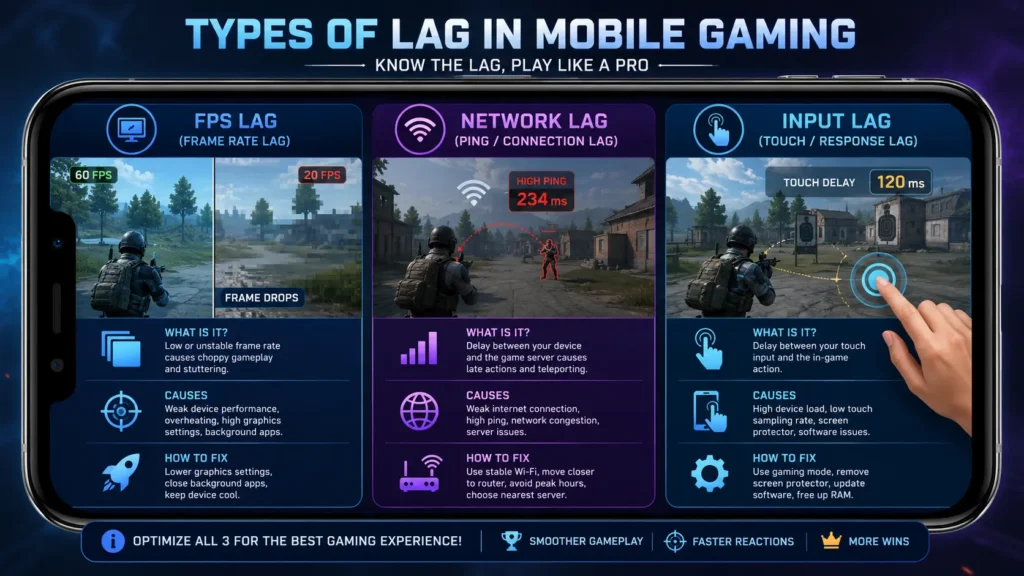
Before applying any fix, you need to diagnose the problem correctly. There are three distinct categories of mobile gaming lag, and confusing them is the number one reason people spend an hour changing settings and see no improvement.
FPS lag is your phone’s hardware struggling. The screen stutters, feels choppy, or freezes during fights with lots of visual effects. Your processor or graphics chip is being pushed past its sustainable limit. Fixes here are about reducing the workload on your hardware.
Network lag (high ping) is a connection problem between your phone and the game’s servers. You will notice rubber-banding, where your character snaps back to a previous position, or actions that register late. Fixes here are about improving or stabilizing your internet connection.
Input lag (touch delay) is when the screen reacts slowly to your taps and swipes. This is subtler than FPS lag but just as damaging in competitive games. Input lag typically comes from background processes competing for CPU time, outdated touch sampling rates, or running your display at a lower refresh rate than the game supports.
Here is a quick three-minute diagnosis. Enable your game’s built-in FPS counter if it has one (most modern titles do in the settings menu). Play for five minutes. If the FPS counter shows numbers dropping below your target during lag spikes, that is FPS or thermal lag. If FPS stays steady but the game still feels delayed or your character rubber-bands, that is a network problem. If taps and swipes feel sluggish even when FPS is fine and ping is low, that is input lag. Keep that diagnosis in mind as you read through the fixes below.
The Quick Fixes That Actually Solve 60% of Cases
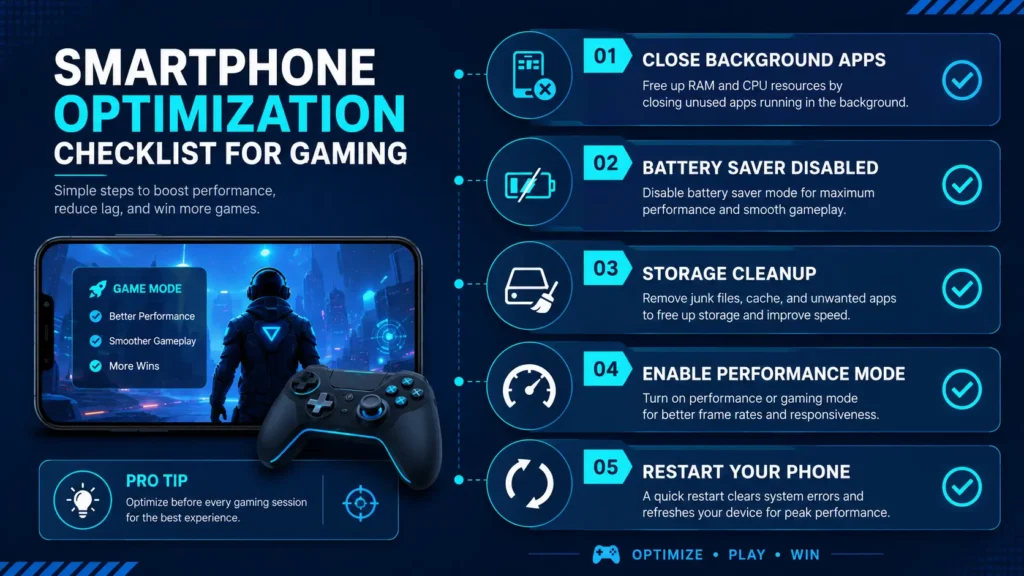
Some fixes work so reliably and so quickly that ignoring them to jump to advanced settings is backwards. Start here.
Restart your phone before long gaming sessions. This sounds like the laziest advice possible. It works anyway. Phones running for days accumulate background processes, cached memory leaks from apps that did not close cleanly, and minor software states that eat CPU cycles. A restart wipes that slate clean. Many professional mobile esports players restart their devices before competitive matches as a standard routine. Make it a weekly habit minimum, daily if you game heavily.
Close background apps before launching. Every open app is a small tax on your RAM, your battery, and your thermals. On Android, tap the Recent Apps button and swipe away everything. On iPhone, swipe up and clear your app switcher. Then force-stop the specific apps most aggressive about running in the background: Chrome, Gmail, TikTok, Instagram, and any game you are not currently playing. Force-stopping these (on Android: Settings > Apps > select app > Force Stop) can free 1 to 2GB of RAM immediately.
Disable battery saver mode completely. Battery saver mode caps your CPU speed to reduce power consumption. That is exactly the opposite of what you need when gaming. Playing on battery saver mode will not help — it will throttle your CPU speed. Disable it before every gaming session. On Android, pull down from the top of your screen and check Quick Settings. On iPhone, go to Settings > Battery and turn off Low Power Mode.
Check your storage. This one surprises people. Games need temporary space to operate smoothly — for loading assets, writing save data, and caching textures. When your storage is 90% full, the phone struggles to manage that temporary space. Keep at least 15 to 20% of internal storage free. Delete old videos, duplicate photos, and apps you have not opened in three months. Moving photos to Google Photos or iCloud and then deleting the local copies is often the fastest way to reclaim significant space.
How to Stop FPS Drops: Graphics Settings Most Players Get Wrong
Here is a controversial opinion that I will stand behind completely: the players complaining loudest about mobile game lag are almost always running graphics settings their phone cannot sustain. Ultra HD textures and maximum frame rate simultaneously on a mid-range phone is not a configuration — it is a slow-motion crash.
Lowering your graphics settings is not admitting defeat. Competitive gamers often use medium or low settings intentionally because stable frame rates matter more than visual quality during fast-paced gaming sessions. Consistent 60 FPS on medium settings beats stuttering between 90 and 45 FPS on ultra settings every single time.
The Specific Settings to Lower First
Inside your game’s graphics menu, these settings have the highest performance cost and the lowest visual impact when reduced:
Shadows should be the first thing you turn down or off. Shadows are surprisingly GPU-heavy. Dropping shadows from high to low in PUBG Mobile or Call of Duty Mobile often recovers 8 to 15 FPS on mid-range hardware with almost no visible gameplay difference.
Anti-aliasing smooths jagged edges but is expensive to render. At mobile screen sizes, the difference between anti-aliasing on and off is less noticeable than on a monitor. Turn it off during competitive play.
Post-processing effects like bloom, motion blur, and depth of field look beautiful in cutscenes and add almost nothing to actual gameplay clarity. Turn them all off.
Resolution rendering scale is available in games like Genshin Impact and allows you to render the game at below-native resolution. Dropping from 100% to 80% render scale is almost invisible on a 6-inch screen but can significantly stabilize frame rates on older hardware.
Keep your other settings — character quality and texture quality — on medium rather than dropping to low. These affect how clearly you see enemies, and that has real competitive implications. The visual quality you want to preserve is the quality that affects your ability to play, not the quality that looks impressive in screenshots.
The Thermal Throttling Problem Nobody Talks About Enough
Thermal throttling is the single biggest reason competitive mobile players lose games they should win, and it gets about one-tenth the attention it deserves in most guides.
Here is what happens: your phone’s CPU and GPU generate heat during intensive gaming. When the internal temperature reaches a threshold — typically around 40 to 43 degrees Celsius — the device automatically reduces its processor speed to prevent hardware damage. That speed reduction is called thermal throttling. An FPS counter that starts a session at a steady 120 and drops to 58 after fifteen minutes of play is showing you thermal throttling in action. It is not a software bug or a network issue. It is your phone managing heat.
The fixes fall into two categories: reducing heat generation and improving heat dissipation.
Reducing Heat Generation
Do not charge and game simultaneously. Charging generates heat from the battery and charger. Running demanding games generates heat from the CPU and GPU. Doing both together pushes temperatures up significantly faster. If your session absolutely requires charging, use a slower charger rather than a fast charger, and position your phone so air can circulate around it.
Lower screen brightness. Your display is a meaningful heat source. Dropping brightness two notches below your default gaming level reduces both battery drain and heat output. In practice, most gaming environments are dim enough that lower brightness is actually easier on your eyes anyway.
Remove your phone case. A thick rubber or silicone case acts as insulation, trapping heat against the phone’s body. A phone at room temperature maintains its peak FPS for roughly three times as long as one that has already reached 42 degrees. Take the case off during long gaming sessions. This one change alone has a measurable impact on sustained performance.
Enable airplane mode and re-enable only Wi-Fi. Mobile data modems generate significant heat and draw substantial battery power. If you play on Wi-Fi, switching to airplane mode and then manually re-enabling Wi-Fi turns off the modem entirely, reducing the thermal load without sacrificing your connection.
Improving Heat Dissipation
External cooling fans are no longer niche gaming accessories. Clip-on USB-C cooling fans from brands like Black Shark, GameSir, and Razer Kishi (as a full controller with built-in cooling) have come down in price significantly. A basic magnetic cooling fan costs between $15 and $35 as of mid-2026. The effect on sustained performance is documented and real: external cooling allows flagship processors to run at full speed for extended sessions where thermal throttling would otherwise kick in. If you play competitively for more than 30 minutes at a time, an external cooler is a higher-impact investment than any game booster app.
Android Developer Options: The Settings That Actually Matter
Developer Options is a hidden menu on Android that unlocks system-level configuration most users never touch. For gaming, several settings inside it make a genuine difference. Here is how to access it and what to actually change.
To unlock Developer Options: Go to Settings > About Phone > Software Information. Tap “Build Number” seven times rapidly. A message will appear confirming Developer Options is now enabled. Go back to Settings and you will find the new Developer Options entry near the bottom of the list.
The settings worth changing for gaming:
Window Animation Scale, Transition Animation Scale, and Animator Duration Scale all control the speed of system animations. Setting each of these to 0.5x makes the interface feel noticeably snappier and reduces the time spent waiting for transitions between screens and menus. This has the most impact on lower-end devices where even UI animations consume meaningful CPU time.
Background Process Limit is the most powerful setting for gaming performance. Setting this to “At most 2 processes” or “No background processes” starves non-gaming tasks of CPU resources during your session. On mid-range phones, this setting alone can recover 5 to 10 FPS in demanding titles. Note: apps running in the background will lose their state and reload when you switch back to them, which is a reasonable trade-off during a gaming session.
Force GPU Rendering forces 2D app elements to render through the GPU rather than the CPU. This can improve performance in games and the surrounding system UI, though the effect is less dramatic than Background Process Limit.
One thing to leave alone: Force 4x MSAA. On flagship devices with Snapdragon 8 Gen 3 or 8 Gen 4 chips, enabling this might work in older games. On anything mid-range, it will overheat the GPU, drain battery faster, and drop FPS. The advice to “enable Force 4x MSAA” that circulates in older gaming guides is outdated and wrong for 2026 mid-range hardware.
Manufacturer-Specific Game Modes
Every major Android brand now ships a dedicated gaming tool that does much of the Developer Options work automatically:
Samsung Galaxy devices have Game Booster. While running any game, swipe from the bottom edge and tap the floating icon. Enable Priority Mode to block calls and notifications, monitor temperature and memory, and set High Performance Mode. This is particularly effective on Galaxy A-series and S-series phones.
Xiaomi and Redmi devices have Game Turbo. Go to Settings > Additional Settings > Game Turbo. Add your games to the list and set CPU/GPU performance to the highest tier. Game Turbo also includes a network prioritization feature that deprioritizes background app traffic during gaming.
ASUS ROG Phone users have the most aggressive built-in optimization suite, including direct CPU/GPU performance locking and a bypass charging system that routes power directly to the processor rather than through the battery, almost eliminating charging-related heat during play.
If your phone does not have a built-in gaming mode, the third-party app Game Booster 4x Faster (free on the Play Store) replicates many of these functions. It is legitimately useful, though I would not pay for the premium version — the free feature set is sufficient.
How to Fix Network Lag and High Ping in Mobile Games
Network lag and FPS lag feel similar but require completely different solutions. Applying hardware fixes to a network problem changes nothing. Here is the right approach.
Switch to 5GHz Wi-Fi. Most home routers broadcast on both 2.4GHz and 5GHz bands. The 5GHz band is faster, less congested, and significantly better for gaming. The trade-off is shorter range. If you game close to your router, connect to the 5GHz network. If you are far from the router, the 2.4GHz band may actually give you more stable (if slower) connectivity. Stable is more important than fast for gaming — consistent 50ms ping beats ping that fluctuates between 20ms and 180ms.
Change your DNS server. This is a simple two-minute change that can shave milliseconds off your connection to game servers. In your Wi-Fi settings, tap your network, go to advanced options, and change the DNS to either Cloudflare (1.1.1.1) or Google (8.8.8.8). Both are faster than the default DNS servers your ISP assigns. This has the most meaningful impact in regions where ISP DNS performance is historically poor.
Check for network congestion in your home. Someone streaming 4K video or downloading a large file saturates your available bandwidth and causes ping spikes that manifest as rubber-banding. Either time your gaming sessions when the network is quieter, or configure your router’s Quality of Service (QoS) settings to prioritize traffic from your phone. Most modern routers have QoS settings in their admin panel (usually accessed at 192.168.1.1 or 192.168.0.1 in a browser).
Use a USB-C to Ethernet adapter for serious sessions. This surprises most people: you can connect your Android phone directly to your router with a physical Ethernet cable using a USB-C to Ethernet adapter (around $12 to $20 on Amazon). Wired connections eliminate wireless interference entirely and produce the most stable, lowest-latency connection possible. On iPhone, you need a Lightning to Ethernet adapter, which works the same way. For competitive play, this single change can drop your ping by 10 to 30ms compared to Wi-Fi.
Avoid mobile data for competitive gaming. 4G LTE and even 5G connections have more latency variability than a stable Wi-Fi connection. Mobile data also consumes significant power and contributes to thermal load. For casual gaming it is fine. For ranked competitive play, Wi-Fi (or wired) is meaningfully better.
The GFX Tool Question: Honest Assessment
GFX tools — apps like PGT: GFX & Optimizer, SKUZA Game Booster, and similar utilities — let you override a game’s graphics configuration to unlock higher FPS targets or reduce resolution below what the game’s own settings allow. The legitimate use case is real: some games cap frame rates lower than your phone can handle, and a GFX tool can unlock that ceiling.
The honest assessment: GFX tools for legitimate performance optimization (resolution reduction, FPS cap adjustment, rendering quality) are useful on games that support them. For PUBG Mobile and BGMI specifically, GFX tools have historically unlocked 90 FPS on devices the game does not officially certify for it.
However, be extremely careful about GFX tools that include options beyond visual adjustments — aim assists, auto-headshot toggles, speed modifications. These are cheats, not optimizations. Using them can trigger anti-cheat systems, and accounts found using these modifications risk penalties up to permanent bans. Use only resolution, FPS cap, and rendering profile options. Stick to reputable tools like PGT Free (by Trilokia Inc., free on the Play Store) and avoid anything offering gameplay advantages.
iOS-Specific Fixes: What Android Guides Skip
iPhone lag has different root causes than Android lag, and the fixes are different as well.
Disable Background App Refresh. Go to Settings > General > Background App Refresh and turn it off entirely, or selectively disable it for social media and streaming apps. These apps refresh their content constantly in the background, consuming CPU and network resources even when you are gaming.
Turn off Automatic Downloads. Settings > App Store > Automatic Downloads. App updates downloading in the background during a gaming session can cause ping spikes and FPS drops. Disable automatic updates and do them manually when you are not gaming.
Reset network settings if ping is consistently high. Settings > General > Transfer or Reset iPhone > Reset > Reset Network Settings. This clears corrupted Wi-Fi configurations that can cause inconsistent ping. Note: this deletes saved Wi-Fi passwords, so have them ready before doing this.
Offload unused apps. Settings > General > iPhone Storage shows your storage usage. Apps that you rarely open can be offloaded — this removes the app but keeps its data, freeing storage without permanent deletion. Keep storage above 20% free.
Low Power Mode has a bigger gaming impact on iPhone than people realize. Apple’s Low Power Mode subtly caps CPU performance and disables some background processing in ways that affect gaming more noticeably than Android’s equivalent. Always disable it before gaming.
Comparison: Game Booster Apps Worth Your Time in 2026
| App | Platform | Price | Best Feature | Honest Downside |
|---|---|---|---|---|
| Game Booster 4x Faster | Android | Free | RAM clearing, notification block | Ads in free version |
| SKUZA Game Booster | Android | Free (IAP) | Live CPU/RAM monitoring overlay | Some features behind paywall |
| PGT: GFX Optimizer | Android | Free | FPS unlock for PUBG titles | Works on limited game list |
| Samsung Game Booster | Android (Samsung) | Built-in | Deep hardware integration | Samsung devices only |
| Xiaomi Game Turbo | Android (Xiaomi) | Built-in | CPU/GPU performance locking | Xiaomi/Redmi only |
| LagoFast Mobile | Android/iOS | Subscription ($4.99/mo) | Dedicated gaming VPN routing | Requires paid plan for best results |
My honest recommendation: use your phone’s built-in game mode first. If your manufacturer does not include one, Game Booster 4x Faster is the free starting point. LagoFast Mobile is worth the subscription only if network lag (not FPS lag) is your primary problem and a DNS change has not solved it.
Frequently Asked Questions About Mobile Game Lag
Does clearing the cache actually reduce lag?
Yes, but selectively. Clearing game cache removes corrupted temporary files that can cause stuttering and slow load times. Go to Settings > Apps > select your game > Storage > Clear Cache. Do this for the main game first, not all apps at once. Clearing cache for all apps simultaneously can cause brief slowdowns as apps rebuild their caches. Target the specific game causing problems.
Will more RAM fix mobile gaming lag?
If your phone has 4GB or less of RAM, upgrading your device will likely help. If you already have 6GB or more, RAM is probably not your bottleneck. Background apps consuming RAM is a more likely culprit than total RAM capacity. Close background apps before gaming as described above, and the RAM you have becomes much more effective.
Is 5G better than Wi-Fi for mobile gaming?
Generally no. 5G has impressive peak speeds but higher latency variability than a stable home Wi-Fi connection. For gaming, consistent low ping matters more than raw speed. A stable 4G connection at 30ms can outperform 5G at 15ms average but 80ms spikes during packet loss events. Use Wi-Fi for gaming whenever possible.
Do “lag fix” apps from the Play Store actually work?
Most of them are glorified RAM clearers with misleading names. The legitimate function — closing background apps and freeing RAM — is something Android does reasonably well on its own or that you can do manually in ten seconds. Apps that claim to “boost” CPU performance or “fix” lag through some proprietary algorithm are generally delivering placebo effects. Stick to tools with specific, documented functions like GFX configuration or network routing.
Why does my game only lag after 10 to 15 minutes?
This is almost certainly thermal throttling. Your phone runs fine until it heats up to its throttling threshold, at which point it reduces CPU/GPU speed to cool down. The fixes are: remove your case, avoid charging while gaming, lower screen brightness, and consider an external cooling fan as described in the thermal section above.
Does updating my phone’s OS reduce game lag?
Yes, in most cases. Android and iOS updates include graphics driver improvements, memory management optimizations, and bug fixes that improve gaming performance. Outdated OS versions can miss frame pacing improvements that newer builds include. Keep both your OS and your game client updated.
Should I enable Developer Options on my daily driver phone?
Developer Options is safe to enable and does not root or void your warranty. However, be cautious about which settings you change. The specific settings listed in this guide — animation scales, background process limit — are low-risk. Other Developer Options settings can cause instability if changed without understanding their purpose. Change only what you understand, one setting at a time, and test after each change.
The Bottom Line: A Priority Order for Fixing Mobile Lag
If your phone lags in games and you want the fastest path to smoother performance, here is the sequence that delivers the best results in the least time.
Start with the five-minute basics: restart your phone, close all background apps, disable battery saver, and check your storage is at least 15% free. These changes alone solve most casual gaming lag problems.
If FPS is the issue: lower your in-game graphics settings (shadows and anti-aliasing first), enable your manufacturer’s built-in game mode, and if you game for 30-plus minute sessions, seriously consider an external cooling fan.
If network lag is the issue: switch to 5GHz Wi-Fi, change your DNS to 1.1.1.1, and schedule gaming when your household network is not under heavy load.
If you want to go deeper: unlock Developer Options and adjust animation scales to 0.5x and Background Process Limit to two or fewer processes. On supported games, use a GFX tool for FPS unlocking and resolution tuning.
The gap between average and elite mobile gaming performance in 2026 is not about what hardware you own. It is about whether you bothered to configure what you already have. Every fix in this guide is free or close to it. The results are real.
Mobile gaming lag is not bad luck. It is a solvable engineering problem — and now you have the full toolkit.