
Best Developer Options Settings for Gaming on Android (2026)

If your phone drops frames mid-match, gets warm in your hand after ten minutes, or reloads your app from scratch every time you check a notification, the fix usually isn’t a new phone. It’s a handful of settings buried in a menu most people never open.
Quick answer: The developer options that actually move the needle for gaming are Window/Transition/Animator Animation Scale (set to 0.5x), Force GPU Rendering (on for phones 2+ years old, test carefully on newer flagships), and Background Process Limit (standard, or capped at 3–4 apps). Force 4x MSAA and Graphics Driver Preferences are the two settings most guides get wrong — we’ll explain exactly why below, because the honest answer is “it depends on your phone” rather than “always turn it on.”
This guide covers the actual Developer Options that matter, the native Gaming Mode features built into Samsung, Xiaomi, OnePlus, Realme, and TCL phones, what changed between Android 11 and Android 15, and what’s genuinely happening under the hood when you flip these switches — because almost nothing else you’ll find covers that part.
How to Get Developer Settings on Android (30 Seconds)
- Open Settings → About Phone.
- Find Build Number.
- Tap it 7 times in a row. You’ll see a countdown, then “You are now a developer!”
- Go back to Settings — Developer Options now shows up, usually under System or Additional Settings.
This is identical on Android 11 through 15. The only thing that changes by brand is where the menu sits afterward — Samsung and TCL tend to bury it one folder deeper than stock Android.
Best Developer Options Settings for Gaming (What Each One Actually Does)
Animation Scale — the free, safe win
Three separate settings: Window Animation Scale, Transition Animation Scale, Animator Duration Scale. All default to 1x. Set all three to 0.5x. This doesn’t change your game’s frame rate, but it measurably reduces the perceived lag between tapping something and the phone responding — menus open faster, alt-tabbing back into a game feels snappier. Turning them fully off works too, but it can feel jarring in daily use, so 0.5x is the better everyday setting.
Force GPU Rendering — helpful on old phones, a coin flip on new ones
This forces 2D UI elements (menus, buttons, scrolling lists) to render through the GPU instead of the CPU. On a phone that’s a few years old or running a weaker chipset, this is a genuine smoothness upgrade. On a modern flagship (Snapdragon 8 Gen 3/8 Gen 4, Dimensity 9000-series), most games already use the GPU efficiently on their own — layering this setting on top can occasionally lower frame rates in graphically demanding 3D titles instead of helping. Test it: play your main game for 10–15 minutes with it on, then off, and compare. Don’t assume it’s a universal upgrade.
Disable HW Overlays — situational
Forces the GPU to handle all screen compositing instead of offloading parts of it to dedicated hardware. Can smooth out visual glitches on some devices; increases GPU load and battery drain on others. Worth testing during a gaming session specifically rather than leaving on permanently.
Background Process Limit — the setting that fixes “apps reload every time I switch back”
This is the direct fix for one of the most common complaints: you alt-tab out of your game to check a message, come back, and the game has restarted from the loading screen. Set this to Standard limit, or cap it at 3–4 processes if you’re on a 4–6GB RAM device. Setting it to “No background processes” sounds aggressive and helpful, but it actually makes the reload problem worse — everything gets killed instantly, including the app you just left.
Force 4x MSAA — leave this off unless you know why you’re turning it on
This forces anti-aliasing in older OpenGL ES 2.0 games, smoothing jagged edges. On modern titles built for Vulkan or newer OpenGL ES versions, it does nothing — the game is already handling its own anti-aliasing. What it does do regardless of the game: increase GPU load and drain battery faster. Multiple long-running discussions on this (including forum threads dating back years) confirm it won’t damage your device — it’s not a stability risk, just a battery cost with no benefit unless the specific game you’re playing is old enough to need it.
Don’t Keep Activities — keep this off
Kills every screen/activity the second you leave it. Useful only for developers testing memory-leak bugs. For gaming, leave it off — you want to be able to switch apps without your game restarting.
Graphics Driver Preferences — the setting almost everyone explains wrong
This one deserves its own explanation, because it’s real, official, and has existed since Android 10 — and it’s also the single most overhyped setting in every “best developer options” video on YouTube.
Here’s what it actually does: some phone manufacturers ship an updatable GPU driver (Google calls this the Game Driver program) separately from the rest of the OS. If — and only if — your manufacturer has implemented this for your specific model, this setting lets you choose between the stable system driver and the updatable one on a per-app basis. If your manufacturer hasn’t shipped an updatable driver for your device (true for the large majority of budget and mid-range phones), the toggle is either missing entirely, greyed out, or silently does nothing when you switch it — you’re not damaging anything, but you’re also not gaining anything. Anyone telling you this is a guaranteed FPS boost hasn’t checked whether your phone actually has an alternate driver installed. Check your manufacturer’s release notes for “Game Driver” or “updatable GPU driver” support before expecting results here.
USB Debugging — off unless actively needed
Only relevant if you’re using an emulator, capture tool, or PC-based tuning app. Leave it off otherwise; it’s a minor security exposure with zero gaming benefit on its own.
Show Refresh Rate — diagnostic only
Displays your real-time screen refresh rate as an overlay. Doesn’t change performance, but it’s the easiest way to confirm your 90Hz or 120Hz panel is actually running at full rate inside a specific game rather than silently dropping to 60Hz.
What Changed Between Android 11 and Android 15 for Gaming
The Developer Options menu itself is nearly identical across versions — the animation scales, Force GPU Rendering, and background process limit behave the same on Android 11 as they do on 15. What changed is what Android does automatically, underneath that menu, without you touching anything:
| Android Version | What’s New for Gaming |
|---|---|
| Android 11 | Baseline Developer Options as covered above. No native Game Mode API yet — all optimization is manual or OEM-specific. |
| Android 12 | Introduces the Game Mode API and OEM-level Game Mode interventions (see next section) on select devices. |
| Android 13 | Adds FPS throttling as an official Game Mode intervention, helping games hold a stable frame rate instead of spiking and dropping. |
| Android 14–15 | Expanded Game State API and refined thermal management (ADPF), giving apps more direct signals about when the device is heating up so they can adjust before you notice stutter. |
If you’re specifically on Android 11, this matters: you don’t have access to the automatic Game Mode interventions newer versions ship with, so the manual Developer Options tweaks above carry more relative weight for you than they do for someone on Android 13+, where the OS is already doing some of that work in the background.
Best Gaming Mode Settings by Brand (Native Game Boosters)
Developer Options are universal, but every major Android manufacturer also ships its own gaming mode layered on top. These are usually the bigger lever — most people get more out of setting these up correctly than from any Developer Options tweak.
Samsung — Gaming Hub / Game Booster Open the Gaming Hub app, tap the three-dot menu, then Game Booster → Game optimization, and choose between Performance, Standard, or Battery saver. Under Settings → Modes and Routines → Game, you can set up automatic Do Not Disturb whenever a game launches — this replaced the older “Priority mode” toggle in recent One UI versions. Per-game customization also lets you set target FPS, resolution, and frame booster settings individually rather than device-wide. Newer Galaxy models also offer Pause USB PD charging while gaming, which stops charging heat from adding to the phone’s own thermal load during long sessions.
Xiaomi / MIUI / HyperOS — Game Turbo Found inside the Security app rather than main Settings — a common point of confusion, since people expect it under Settings and give up looking. Game Turbo handles CPU/GPU prioritization, touch sensitivity boosts, and notification blocking in one place.
OnePlus — Gaming Mode Located under Settings → Special Features (sometimes labeled Utilities depending on OxygenOS version). Handles notification blocking, network prioritization for the active game, and a performance/battery toggle.
Realme, Infinix, OPPO — Game Space / Game Assistant Branded slightly differently across these (Game Space, Game Assistant), but functionally similar: notification blocking, a performance mode toggle, and sometimes a 4-finger touch or aim-assist overlay on supported models. Worth checking your specific model’s settings menu by name, since budget-tier phones in this bracket vary more in where this sits than flagship phones do.
A practical note that applies to all of the above: your phone’s native Game Mode and the manual Developer Options settings aren’t competing with each other — they operate at different layers. Turning on Samsung’s Game Booster performance mode doesn’t make Force GPU Rendering redundant, and vice versa. Use both.
Best Gaming Settings for TCL Phones
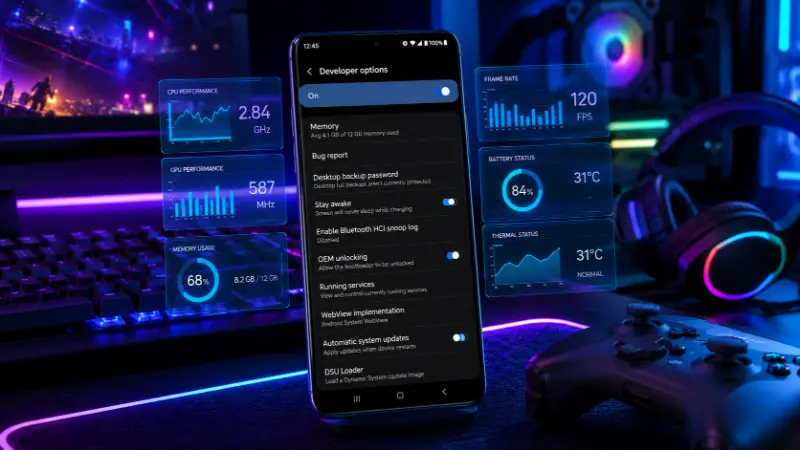
TCL phones (the 40-series, 50-series, and K-series in particular) sit in the budget-to-midrange bracket, so the goal here isn’t unlocking hidden power — it’s getting the most out of modest hardware without fighting it.
- NXTVISION display settings: TCL’s display engine ships separate Image, Video, and Game enhancement profiles. Make sure the Game profile is active before a competitive session — it adjusts contrast and sharpness specifically for fast motion, independent of your general display brightness settings.
- Smart Manager / RAM cleaner: TCL’s built-in memory manager is often more aggressive than Android’s own Background Process Limit setting, and it will kill background apps even when Developer Options is configured generously. If apps keep reloading after you alt-tab, whitelist your games directly inside Smart Manager — the Developer Options setting alone won’t override it.
- Refresh rate: Mid-range TCL panels with 90Hz+ support often default to adaptive refresh, which drops to 60Hz or even 30Hz automatically to save battery. If your game supports higher refresh rates, manually lock the refresh rate to maximum in Display settings instead of leaving it on Auto.
- Realistic settings for the hardware you actually have: On TCL’s typical chipsets (Unisoc, Helio G-series, or entry Snapdragon/Dimensity), heavier titles like Call of Duty Mobile or Genshin Impact run best at Medium/Low graphics with frame rate capped around 30–40fps, rather than pushing max settings and fighting thermal throttling every session. Lighter titles — Brawl Stars, Minecraft, most 2D and pixel-art games — run comfortably on nearly any TCL device without adjustment.
- Combine the above with Force GPU Rendering: On and animation scales at 0.5x — on this hardware tier, those two give the most noticeable everyday improvement of anything on this list.
What’s Actually Happening Under the Hood (ADPF, Game Mode API, and OEM Interventions)
This is the part almost no consumer guide touches, and it explains why the same setting helps one phone and does nothing on another.
Android has an official performance framework called ADPF (Android Dynamic Performance Framework), which includes a Thermal API, a Game Mode API, and a Game State API. These exist so game developers — not just phone manufacturers — can respond directly to what your hardware is doing in real time.
Separately, phone manufacturers can apply their own Game Mode interventions to older games that are no longer being updated by their original developers. Two documented examples:
- WindowManager backbuffer resizing — quietly renders the game at a slightly lower internal resolution to reduce GPU load, which can cut GPU usage by up to roughly 30% and overall system power draw by around 10%, depending on the device and game.
- FPS throttling (Android 13+) — deliberately caps a game’s frame rate to keep it stable rather than letting it spike and crash back down, which tends to feel smoother than an unstable higher average.
The important part: these interventions are applied by the manufacturer, automatically, per-game, and a well-optimized modern game can override or opt out of them entirely through the Game Mode API. This is why manually flipping Developer Options can feel powerful on an older or less-optimized game and completely invisible on a big, well-coded, regularly updated title — the developer has often already handled this at the code level, and your manual toggle is competing with settings the game itself is managing.
Common Pain Points and What’s Actually Causing Them
“My phone gets hot and then noticeably slows down.” This is thermal throttling — the chipset deliberately drops clock speed to protect itself once it crosses a heat threshold. No Developer Options setting fixes this on its own; it’s a hardware and cooling limitation. What helps: removing your case during long sessions, capping your target frame rate instead of running unlocked, and closing background apps that add extra CPU load on top of the game itself.
“Frames drop the moment a notification pops up.” Set Background Process Limit as covered above, and separately disable battery optimization for your specific game (Settings → Apps → [game] → Battery → Unrestricted). The two settings fight each other if left on defaults — the OS deprioritizes background work to handle the notification unless you’ve told it not to.
“How do I make my phone screen smoother for gaming?” Three things stack together here: animation scale at 0.5x, a locked (not adaptive) high refresh rate if your panel supports one, and confirming via the Show Refresh Rate overlay that the game is actually running at that rate rather than silently falling back to 60Hz.
“Apps reload from scratch every time I alt-tab.” Almost always an aggressive Background Process Limit, or — especially on TCL, Xiaomi, and other budget-to-midrange devices — the phone’s own battery/RAM manager killing the app independently of Developer Options. Check both, not just one.
“Is it safe to use Developer Options on an older Android phone?” Yes. Nothing here voids a warranty or risks bricking the device the way flashing custom firmware does. Worst case with any single setting is that it makes something feel worse, and you switch it back.
“Will Force 4x MSAA damage my phone?” No. It only activates its extra rendering work during graphics-intensive moments in games that actually use it — it increases battery drain and heat proportionally to use, the same as any other GPU-heavy setting, but it carries no long-term damage risk.
“Is there a ‘buffer size’ setting I should change in Developer Options?” This gets asked a lot, usually based on old forum answers, but there’s no standalone universal “buffer size” toggle in stock Android Developer Options. What people are usually referring to is the WindowManager backbuffer resizing covered above — which is a manufacturer-side Game Mode intervention, not something you configure by hand. Be skeptical of any guide giving you a specific number to type in here.
“I installed a ‘Game Mode’ APK from outside the Play Store — is that safe?” Treat these carefully. Legitimate gaming mode functionality already exists natively on every major Android skin (Samsung, Xiaomi, OnePlus, Realme, TCL, and stock Android via Developer Options). A sideloaded app promising to “unlock hidden gaming mode” is usually asking for permissions — accessibility access, overlay display, usage stats — that go well beyond what a genuine performance toggle needs. If your phone’s native gaming mode already exists, there’s rarely a reason to install a third-party one for this purpose.
Quick-Reference Cheat Sheet
- Animation scales (all three) → 0.5x
- Force GPU Rendering → On, but test on modern flagships specifically
- Disable HW Overlays → test during actual gameplay, keep only if it helps
- Background Process Limit → Standard, or 3–4 apps
- Force 4x MSAA → off unless playing an older OpenGL ES 2.0 title
- Graphics Driver Preferences → check if your manufacturer actually ships an updatable driver before expecting a change
- Don’t Keep Activities → off
- USB Debugging → off unless actively needed
- Show Refresh Rate → on, diagnostic only
- Native Game Mode (Samsung/Xiaomi/OnePlus/Realme/TCL) → set up alongside Developer Options, not instead of them
Frequently Asked Questions
What should I change in Android Developer Options for gaming?
The three with the most consistent, measurable impact are animation scale (0.5x), Background Process Limit (standard or capped at 3–4 apps), and Force GPU Rendering — tested on your specific phone rather than assumed. Everything else on the list is more situational.
Is it worth turning on Developer Options just for gaming?
Yes, if you use the specific settings above rather than toggling everything in the menu. Most of Developer Options is irrelevant to gaming (it’s built for app developers), so the value comes from picking the handful of settings that matter and ignoring the rest.
Can anyone explain all these Developer Options in plain terms?
Most of the menu covers things like USB debugging modes, logging levels, and app-compatibility testing tools meant for people building apps — not gaming-relevant at all. The gaming-relevant subset is genuinely small: animation scale, GPU rendering, background process limits, and (situationally) MSAA and HW overlays.
How do you boost an Android phone for gaming overall, not just through Developer Options?
Combine Developer Options with your phone’s native Game Mode (Gaming Hub, Game Turbo, Gaming Mode, or Game Space depending on brand), keep the OS and the game itself updated, and keep at least 20–30% of storage free — low storage measurably slows down asset loading independent of anything else on this list.
Does changing these settings drain the battery faster?
Force GPU Rendering, Disable HW Overlays, and Force 4x MSAA all increase GPU workload and battery use. Animation scale and background process limits typically save battery instead, since they reduce background activity rather than adding rendering work.
Is a developer option ever actually harmful to an Android phone?
No individual toggle covered here causes hardware damage. The closest thing to real risk is USB debugging left on indefinitely, which is a minor security exposure rather than a performance or hardware issue.
How do I know if my phone supports the newer Game Mode API or FPS throttling?
These arrived with Android 12 (Game Mode API, select devices) and Android 13 (FPS throttling) respectively. Check your phone’s Android version in Settings → About Phone; if you’re on Android 11, you don’t have automatic access to these and manual Developer Options tweaks carry relatively more weight for you.