
How to Save Battery While Gaming Mobile: The Complete 2026 Guide

You are 40 minutes into a ranked match. The momentum is yours. Your team is coordinating perfectly. And then the notification appears — 15% battery remaining. You keep playing because you have to. At 8%, the phone starts throttling performance to protect the battery. At 4%, the screen dims without permission. At 2%, the game closes itself.
Your team lost. Your rank dropped. And none of it was about your skill.
Mobile gaming in 2026 is more demanding than it has ever been. Games like Genshin Impact, PUBG Mobile, and Call of Duty Mobile push 120fps rendering, ray-traced lighting, and continuous haptic feedback simultaneously. That combination drains a 5,000mAh battery — which sounds large until you realize gaming consumes it at roughly three to four times the rate of video streaming. If you are also dealing with frame drops and stuttering alongside battery issues, our guide on how to reduce lag in mobile games covers those fixes in detail — because battery drain and lag often share the same root causes.
Here is what most battery guides will not tell you: the real enemy is not just how fast your battery drains during a session. It is what repeated gaming sessions do to your battery’s long-term capacity. A lithium-ion battery loses approximately 20% of its total capacity after 500 complete charge cycles. If you are gaming heavily while charging — the single most damaging habit a mobile gamer can have — you are completing partial cycles at elevated temperatures, which accelerates that degradation significantly faster than 500 cycles would suggest.
Battery drain and input lag are usually the same fight — once your device is optimized, it’s worth checking our guide on how to reduce lag in mobile games so your settings and your battery life aren’t working against each other. Competitive players fine-tuning their PUBG Mobile control settings will notice the difference fastest, since precision suffers first when a phone starts throttling. Long offline sessions are just as demanding on a battery — our picks for the best offline RPGs on mobile are exactly the kind of games this advice was written for. And in fast-paced matches, Valorant Mobile is a good example of a title where every percentage point of battery counts mid-match.
This guide covers both problems. Session-by-session battery savings that extend how long you play today, and long-term battery health habits that keep your phone performing like new for two or three years rather than one. The two goals connect directly, and understanding both changes how you approach every gaming session.
Why Does Gaming Drain Your Battery So Much Faster Than Other Activities?
Gaming is the single most power-intensive activity a smartphone performs, and understanding why makes the fixes more intuitive.
When you watch a video, your phone’s CPU works at moderate load while the GPU renders a pre-compressed stream. The workload is predictable and relatively low. When you play a demanding mobile game, the CPU manages game logic, physics calculations, and network communication simultaneously. The GPU renders three-dimensional environments at 60 to 120 frames per second, recalculating lighting, shadows, and particle effects dozens of times per second. The cellular or Wi-Fi radio maintains a constant data stream with game servers. The display runs at maximum brightness because you need to see fast-moving details clearly. And the haptic motor fires repeatedly for impact feedback.
Every one of those systems draws current from the battery at the same time. A flagship phone playing Genshin Impact at maximum settings draws approximately 8 to 10 watts continuously. A mid-range phone playing PUBG Mobile at medium settings draws 4 to 6 watts. For context, streaming Netflix on the same devices draws 2 to 3 watts. Gaming genuinely uses two to three times the power of the next most demanding common activity.
Here is the insight that changes your strategy: not all of those power draws are equally necessary for a good gaming experience. The display is the largest single consumer of battery power during gaming, accounting for approximately 30 to 40% of total drain in most sessions. Shadows and anti-aliasing together account for another 20 to 25%. Network radio inefficiency — caused by signal instability, not the connection itself — adds another 10 to 15%. These are all addressable without meaningfully degrading your actual gameplay experience.
What Is the Biggest Battery Drain During Mobile Gaming?
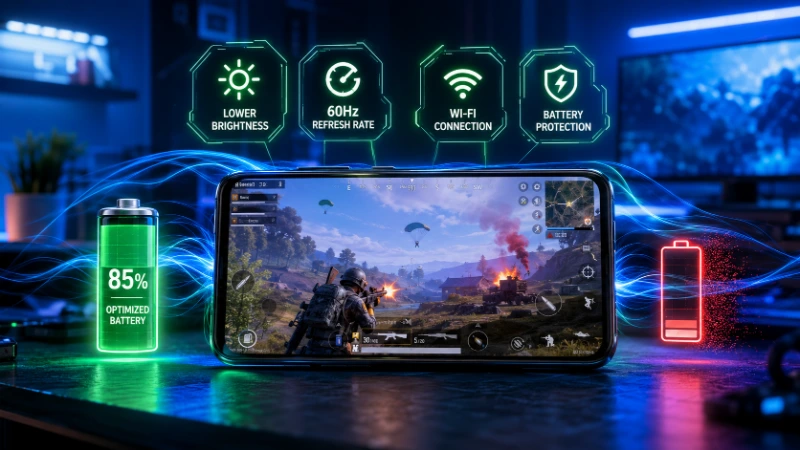
Your screen is consuming more battery than your game’s graphics engine. That is not an exaggeration — it is a measurement.
Display brightness is the single highest-impact controllable variable in mobile gaming battery consumption. AMOLED and OLED screens, which power the displays on iPhone 14 and newer, Samsung Galaxy S-series, and most current Android flagships, consume power proportional to the brightness and color of what they display. A white screen at 100% brightness on an OLED panel can draw 700 to 900 milliamps. The same screen at 50% brightness draws less than half that. Even reducing brightness from 100% to 70% during indoor gaming — where 100% is genuinely unnecessary — adds 20 to 30 minutes to a typical gaming session.
The practical step: reduce brightness to the lowest level where you can comfortably distinguish game elements. For most indoor environments, this is 40 to 60% of maximum. Auto-brightness sensors are calibrated for general phone use, not gaming — they tend to set brightness higher than necessary during gaming sessions because the screen content changes rapidly. Manual brightness control during gaming sessions outperforms auto-brightness for battery conservation every time.
Dark Mode and OLED Screens: The Hidden Battery Advantage
If your game supports a dark theme or dark mode interface, enabling it on an OLED screen provides genuine battery savings. OLED pixels that display black consume almost no power — the pixel is literally off. Pixels displaying white consume maximum power. Games with dark UI elements, dark menus, and night-themed environments drain OLED batteries measurably less than games with bright, colorful interfaces.
This advantage does not apply to LCD screens, which backlight the entire panel regardless of displayed color. If your phone uses an LCD display — common on budget Android devices and older iPhones — dark mode saves negligible battery during gaming.
Screen Refresh Rate: The Setting Most Players Never Change
Here is the one most players miss entirely: your screen’s refresh rate setting is probably draining your battery more than your game’s graphics settings.
A 144Hz screen refreshes 144 times per second. A 60Hz screen refreshes 60 times per second. Running at 144Hz draws significantly more power than 60Hz because the display controller and GPU are working more than twice as hard to keep up. Most competitive mobile games do not render consistently above 60fps regardless of your refresh rate setting. Your screen is refreshing 144 times per second, but the game is only delivering 55 to 65 frames of new content. The extra refreshes display the same frames repeatedly — consuming power without contributing any visible benefit.
Switching from 144Hz or 120Hz to 60Hz in your display settings before a long gaming session extends battery life by 20 to 30% in measured comparisons. On Android, find this in Display Settings under Motion Smoothness, Screen Refresh Rate, or Display Refresh Rate depending on your manufacturer. On iPhone, ProMotion (the 120Hz system on iPhone 13 Pro and newer) can be locked to 60Hz through Settings, Accessibility, Motion. This is one of the three highest-impact changes you can make, alongside brightness reduction and graphics optimization.
How Do Graphics Settings Affect Battery Life During Gaming?
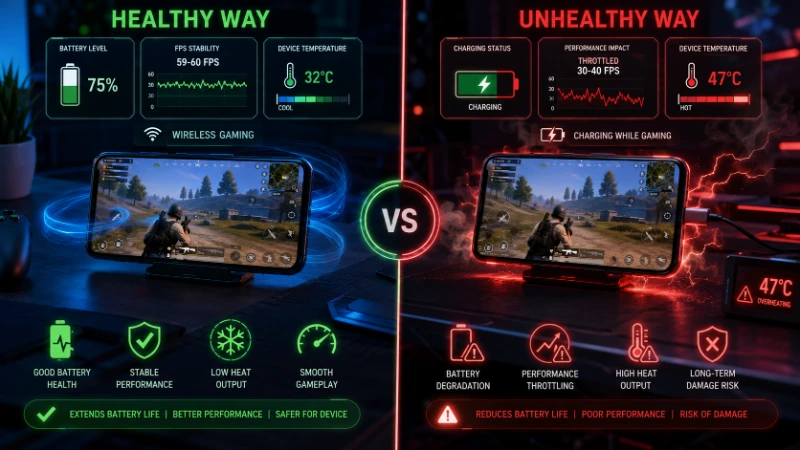
Graphics quality settings and battery life are directly linked because every visual effect your GPU calculates requires electrical current. Higher settings equal more calculations per second, which equals more power drawn, which equals faster battery drain.
The relationship is not linear. Some visual settings are far more power-expensive than others, and knowing which ones to target lets you save significant battery while preserving the visual quality that actually matters during gameplay.
Shadow quality is the most expensive setting to leave on high. Rendering shadows requires the GPU to calculate light sources and geometry interactions for every object in the scene. On maximum settings in Genshin Impact, disabling or minimizing shadow quality reduces GPU load by an estimated 15 to 20%, with a directly proportional reduction in battery consumption. During fast-paced combat, you will not notice shadow quality at all — your attention is on character positions and ability timing, not shadow rendering accuracy.
Anti-aliasing is the second priority to reduce. This setting smooths jagged edges on object outlines and character models. At maximum settings it is computationally expensive. At minimum settings on a phone screen held at normal viewing distance, the visual difference is genuinely difficult to perceive. Turn it off or reduce it to the minimum available option.
Particle effects and visual effects quality deserve reduction during competitive play specifically. In games like PUBG Mobile and Call of Duty Mobile, heavy VFX during combat is not just battery-expensive — it actively clutters your view of enemies and positioning. Reducing VFX quality saves battery and improves gameplay clarity simultaneously. This is one of the rare cases where the battery-saving choice is also the performance-improving choice.
What to leave alone: character model quality and texture quality at medium settings do not meaningfully reduce battery drain compared to the settings above, but they do produce visible degradation in how the game looks. The balance point is medium textures, minimum shadows, minimum AA, and minimum VFX.
Frame Rate Caps: Why Unlimited Is Always the Wrong Choice
Every mobile game with an Unlimited or Maximum frame rate option should be set to a locked 60fps. Always.
Unlimited frame rate means the GPU races to render as many frames as possible regardless of display refresh rate or game server update frequency. During a chaotic firefight, this might produce 90 frames per second. During a quiet exploration moment, it might produce 140. The GPU is consuming maximum power the entire time, regardless of whether those extra frames contribute any perceivable benefit.
Locking to 60fps caps power draw at a predictable level, reduces heat generation, and in practice delivers a smoother experience than uncapped frame rates because thermal throttling — which kicks in when the GPU runs hot — causes sudden FPS drops far more disruptive than a consistent 60fps cap. Stable 60fps beats volatile 80 to 30fps every single match.
Does Charging While Gaming Damage Your Battery Long-Term?
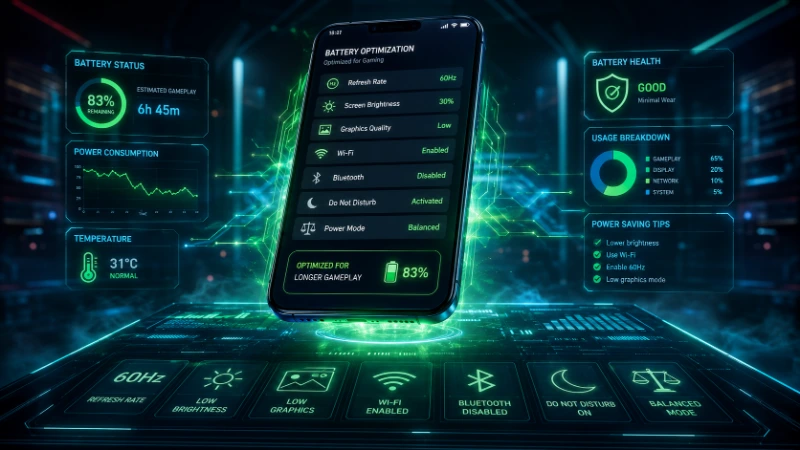
Yes — and this is the conversation most battery guides avoid because the answer requires people to change a convenient habit.
Charging while gaming creates a specific combination of conditions that is uniquely damaging to lithium-ion battery chemistry. Gaming draws high current from the battery while simultaneously generating significant processor and GPU heat. Charging adds electrical current flowing into the battery at the same moment current is flowing out, plus the additional heat generated by charging circuitry. The battery is simultaneously being stressed by high current discharge, heated by charging, and heated by the processor — three independent heat sources working together.
Lithium-ion batteries degrade faster at elevated temperatures. Specifically, battery chemistry research indicates that sustained temperatures above 40 degrees Celsius during charging measurably accelerate capacity fade. Smartphones typically operate between 35 and 45 degrees Celsius during gaming without charging. Add active charging and many mid-range devices reach 45 to 50 degrees Celsius regularly.
The practical consequence: a phone regularly gamed while charging will lose noticeable capacity within 12 to 18 months. The same phone gamed without charging, with proper charge management, retains significantly more capacity over the same period. Battery degradation is irreversible. You cannot recover capacity that has been lost through heat damage.
The recommendation: charge to 80% before your session. Game without charging. Charge again after the session is complete. If a session runs long and you need to charge mid-game, reduce your frame rate cap to 60fps and lower graphics settings to reduce heat generation from the processor side before plugging in.
The 20-80 Charging Rule for Mobile Gamers
The single most impactful long-term battery habit is keeping your phone between 20% and 80% charge as often as possible. This is not new advice, but the reasoning behind it is worth understanding clearly.
Lithium-ion batteries experience the most chemical stress at the extremes of their charge range. The top 20% of charge (80% to 100%) and the bottom 20% (20% to 0%) are where electrode chemistry is under the most strain during charging and discharging respectively. Keeping the battery in the middle 60% of its range means it spends less time in the high-stress zones with every cycle.
Most modern phones include tools to enforce this automatically. Samsung’s Battery Protection mode caps charging at 85%. Apple’s Optimized Battery Charging learns your overnight charging routine and holds at 80% until shortly before you typically wake up. OnePlus, Xiaomi, and Pixel devices offer similar charging limit options in their battery settings menus. Enable whichever version your device offers. For gamers who regularly drain their phone during sessions, this habit alone extends battery health across two to three years of ownership.
Which Wireless Radios Drain Battery and Which Ones You Can Turn Off
Your phone maintains multiple wireless connections simultaneously by default, and not all of them are necessary during a gaming session. Understanding which ones to disable — and which ones to keep — saves meaningful battery without disrupting gameplay.
Bluetooth is the simplest to address. If you are not using wireless headphones, a controller, or any other Bluetooth device during your gaming session, turn it off. Bluetooth radio maintains a constant low-power scan for nearby devices even when nothing is connected. This draws a small but continuous current that adds up over a long session.
GPS and Location Services have no function during most mobile gaming. Turn off location access for your game specifically in app permissions settings, and consider disabling GPS entirely during gaming sessions if no other apps require it. Navigation apps, food delivery apps, and social media all request location access — these continue using GPS in the background even when you are gaming.
Cellular data versus Wi-Fi is a choice with a clear winner for battery conservation. Wi-Fi consumes less power than cellular data for the same data transfer volume, because the transmitter distance to your router is far shorter than the distance to a cell tower, requiring lower transmission power. If you have Wi-Fi access during gaming, use it. Mobile data is appropriate when Wi-Fi is unavailable, not as a preference.
The 5GHz versus 2.4GHz Wi-Fi frequency choice involves a trade-off relevant to battery life. The 2.4GHz band reaches farther and penetrates walls better, meaning your phone’s Wi-Fi radio does not have to work as hard to maintain a stable signal from a distance. The 5GHz band is faster and less congested but requires more radio power to maintain signal quality through walls. For battery conservation specifically, 2.4GHz from a moderate distance performs similarly to or better than 5GHz. For ping and network performance, 5GHz wins. Choose based on your priority for the session.
NFC, Hotspot, and Mobile Hotspot should be disabled during gaming if not in use. These consume power continuously when enabled regardless of active use.
Do Game Booster Apps Actually Save Battery?
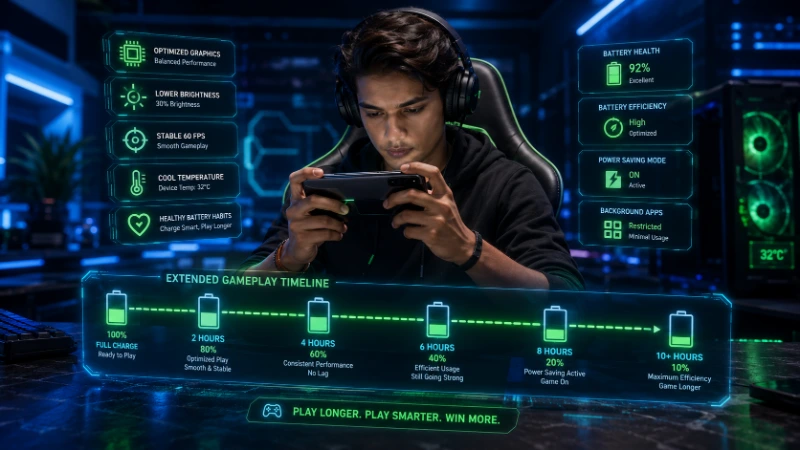
Here is the honest answer that most app review articles sidestep: some do, most do not, and the ones that work do so through functions your phone already has built in.
The legitimate battery-saving function that game booster apps perform is closing background apps and blocking notifications before a gaming session. This is real and it does reduce battery drain — background apps consuming RAM and CPU cycles draw current, and notifications interrupt the GPU rendering pipeline, causing micro-spikes in power consumption. However, you can achieve identical results by manually closing background apps and enabling Do Not Disturb mode before gaming. These take thirty seconds total.
Apps that claim to “optimize CPU allocation,” “reduce GPU heat,” or “intelligently manage battery” through proprietary algorithms are overwhelmingly providing placebo effects. Android and iOS manage their own CPU and GPU scheduling at a system level that third-party apps cannot meaningfully override without root or jailbreak access.
What genuinely works among app-adjacent tools:
Samsung Game Booster, built into Samsung devices, has Priority Mode which blocks calls, messages, and notifications during gaming while monitoring temperature and memory. This is a legitimate system-level tool with real access to hardware management.
Xiaomi Game Turbo’s Network Acceleration feature prioritizes the game’s network traffic over background data requests, which reduces effective battery use by making the network radio work more efficiently.
ASUS ROG Phone’s Armoury Crate, designed specifically for gaming phones, provides hardware-level power management including per-game performance profiles that can be set to Balanced mode for longer battery life on less demanding titles.
AccuBattery is the most useful battery health monitoring app available. It does not boost performance or save battery directly. What it does is measure your battery’s current actual capacity compared to its design capacity, track charge cycles, and estimate battery wear rate. This information tells you whether your current gaming and charging habits are degrading your battery faster than they should be. Available on Android; iOS provides battery health information natively in Settings under Battery.
How to Set Up Your Phone Before a Long Gaming Session
A five-minute setup routine before any session longer than 45 minutes produces measurably better battery outcomes than launching the game directly. Here is the complete pre-session configuration:
- Check battery level and charge to 80% if below 40%. Starting a long session below 40% battery means you will either end the session early or need to charge during play. Both are worse outcomes than a 15-minute charge before starting.
- Lower screen brightness to 50-60% of maximum. For most indoor environments this is fully comfortable. Re-evaluate after 10 minutes if the game requires you to see fine details.
- Set screen refresh rate to 60Hz in display settings. This single step extends session length by 20 to 30 minutes on most devices.
- Open your game’s graphics settings and confirm shadows are on Low, anti-aliasing is off or minimum, and frame rate is capped at 60fps. These settings persist between sessions on most games, so once configured they require only occasional re-checking after major game updates.
- Close background apps through Settings, not just the recent apps view. Force-stop any social media apps and streaming services. These are the highest background power consumers.
- Enable Do Not Disturb. Notification interruptions during gameplay cause brief GPU rendering spikes and are genuinely disruptive to session battery consumption beyond just the annoyance factor.
- Remove your phone case if you will be playing for more than 30 minutes. Case removal alone reduces sustained operating temperature by 3 to 5 degrees Celsius.
- Do not plug in to charge. If battery level allows, play without charging. The session will be more thermally stable and your battery will thank you over the next two years.
This routine takes five minutes. The battery savings across a two-hour session compared to launching the game directly from a cold screen at full brightness and 120Hz refresh range from 35 to 45 minutes of additional playtime. That is a meaningful improvement from five minutes of setup.
Brand-Specific Battery Settings Worth Knowing
Each major Android manufacturer ships tools specifically relevant to gaming battery management. These are worth knowing by device brand.
Samsung Galaxy (A-series and S-series): Game Booster inside Game Launcher offers Performance Management mode with a slider between Performance and Battery Saving. Setting this to the center position (Balanced) rather than Performance extends sessions measurably without the sluggishness of full battery saving. Battery Protection mode in Battery settings caps charging at 85%. Enable it permanently if you primarily charge overnight.
Xiaomi and Redmi devices: Game Turbo includes a Balanced Gaming mode specifically for battery conservation. MIUI and HyperOS both include a dedicated Battery Saver Gaming option that restricts background activity more aggressively than standard battery saver while maintaining game performance. Enable this for casual gaming sessions where peak competitive performance is not the priority.
Google Pixel: Adaptive Battery in Battery settings uses machine learning to learn which apps you use regularly and which you do not, restricting background activity for unused apps. This takes approximately a week of use to optimize. Battery Share on Pixel 8 and newer allows reverse wireless charging, which is irrelevant for gaming sessions but useful for charging accessories during downtime.
OnePlus and Nothing Phone: Gaming Mode raises touch sampling rate for competitive responsiveness, but also increases power draw from the display controller. For longer casual sessions, leaving Gaming Mode off and reducing refresh rate manually produces better battery outcomes.
iPhone (iOS 18 and iOS 19): Game Mode, which activates automatically when the phone detects sustained gaming load, reduces background CPU activity and deprioritizes non-game network requests. This is a passive system requiring no user action beyond keeping iOS updated. Low Power Mode on iOS has a more nuanced effect on gaming than on Android — test it with your specific game before assuming it hurts performance, as some titles run more stably under Low Power Mode due to reduced background interference.
The Long Game: Preserving Battery Health Across Two Years of Mobile Gaming
Every gaming session has both immediate effects — how long your battery lasts today — and cumulative effects on battery capacity over time. Most guides address only the immediate effects. The cumulative effects determine whether your phone is still performing well in year two or year three.
Lithium-ion batteries lose capacity through a combination of charge cycles, heat exposure, and time. Research indicates that repeated exposure to temperatures above 40 degrees Celsius during charging is one of the primary accelerators of capacity fade — more damaging than the charge cycle count alone under normal temperature conditions. For mobile gamers, this means the gaming-while-charging habit is not just a session-by-session inefficiency. It is actively shortening the useful life of your phone’s battery.
The three habits that most significantly protect long-term battery health for mobile gamers:
Never game while fast charging. Fast charging at 65W, 120W, or higher generates substantial heat from the charging circuitry on top of the heat your processor generates during gaming. If you must charge during a session, use a standard charging adapter at 15W to 25W maximum, and reduce your game’s graphics settings to the lowest practical level to reduce processor heat simultaneously.
Use your phone’s charging limit feature. Samsung, Apple, OnePlus, Xiaomi, and most major manufacturers now include an option to cap maximum charge at 80% or 85%. For gamers who charge overnight, this prevents the battery from sitting at 100% for six to eight hours, which accelerates chemical degradation even without active use.
Keep the phone cool during gaming whenever possible. Environmental temperature matters. Playing outdoors in summer heat, or in a poorly ventilated room where ambient temperature is high, meaningfully increases operating temperature. If you play in a consistently warm environment, an external cooling fan — a clip-on USB-C model from Black Shark, GameSir, or similar brands at $15 to $35 as of mid-2026 — provides measurable protection for both session performance and long-term battery health by actively removing heat from the phone’s back panel.
Battery health is the one phone component that cannot be upgraded through software. Once capacity is lost, it is gone unless you replace the battery — a repair that costs $50 to $100 for most flagship devices through official channels. The habits in this section cost nothing and prevent that expense.
Frequently Asked Questions About Saving Battery While Gaming Mobile
Does airplane mode help save battery during gaming? Yes, for offline games it is the single most effective radio-management step. Airplane mode disables all wireless radios simultaneously — cellular, Wi-Fi, Bluetooth, NFC, and GPS. For offline games like GTA San Andreas on Netflix (which only requires occasional subscription verification), playing in airplane mode can extend session time by 15 to 20% by eliminating all radio power consumption. For online games like PUBG Mobile or Valorant Mobile, airplane mode disconnects you from game servers entirely. For those titles, use Wi-Fi only and manually disable cellular data through the Settings quick toggle.
Is it bad to charge your phone to 100% every night if you game heavily? It is suboptimal for long-term battery health. Lithium-ion batteries experience chemical stress when sitting at 100% charge for extended periods. For heavy gamers who drain their battery significantly each day, enabling the charging limit feature (80-85% cap) or Apple’s Optimized Battery Charging provides meaningful long-term protection. The tradeoff is approximately 15 to 20% less battery available at session start, which most players can compensate for by using the session setup routine in this guide to reduce per-session consumption.
Do power banks damage phone batteries? Standard power banks charging through a USB-C cable at their rated wattage do not damage batteries. The concern is heat — some power banks with inefficient circuitry generate excess heat during power transfer, which compounds with gaming heat if you are playing while using one. High-quality power banks from Anker, Baseus, or similar established brands (priced $25 to $60 as of mid-2026) charge cleanly at rated wattage without significant heat generation. Avoid cheap unbranded power banks, which often deliver inconsistent wattage and generate more heat than rated.
Why does my phone die faster during gaming than the battery percentage suggests? This is a symptom of battery degradation. As lithium-ion batteries age, their ability to deliver peak current under load diminishes even when they report a significant charge remaining. A battery at 80% of its original capacity may report 30% charge remaining but shut down unexpectedly during gaming because the degraded cells cannot deliver the peak current the processor demands. On iPhone, check battery health in Settings under Battery. On Android, AccuBattery provides a measured capacity estimate after several charge cycles. If your battery health is below 80% of design capacity, a battery replacement will solve the unexpected shutdown problem.
Does reducing haptic feedback actually save meaningful battery? Haptic motors consume power, but less than display and GPU combined. Disabling haptic feedback saves approximately 3 to 5% battery per session — meaningful over many hours, but a lower priority fix than screen brightness and refresh rate reduction. Disable it as part of a comprehensive setup routine, not as a standalone primary fix.
Should I use battery saver mode while gaming? Standard battery saver mode throttles CPU performance and should be avoided for competitive gaming. However, most manufacturers also offer a Balanced or Gaming mode that restricts background activity without throttling game performance — this is appropriate and beneficial. On iOS, as noted above, Low Power Mode’s effect on gaming performance varies by title and is worth testing individually rather than assuming it always hurts.
Can external cooling fans actually extend battery life? Yes, through two mechanisms. First, they reduce operating temperature, preventing thermal throttling that causes the CPU and GPU to reduce clock speeds and then ramp back up repeatedly — a cycle that consumes more energy than steady operation at moderate clock speeds. Second, lower temperatures reduce heat-related battery degradation over time. The performance benefit of external cooling is documented and measurable. For players who game for more than 45 minutes per session regularly, a $15 to $35 USB-C cooling fan pays for itself in preserved battery capacity within six months.
What Mobile Battery Technology Looks Like in 2027 and Beyond
The power consumption gap between mobile gaming demands and battery technology is real and is currently being addressed from multiple directions simultaneously.
Silicon-carbon anode batteries — shipping in select 2025 and 2026 flagships from Honor, Xiaomi, and OnePlus — store significantly more energy per unit of battery volume than traditional graphite anodes. The Honor Magic 6 Pro and Xiaomi 14 Ultra both use silicon-carbon anode cells that provide 15 to 20% more capacity in the same physical space as their predecessors. This technology is expanding to mid-range devices in 2026 and 2027, which means longer baseline gaming sessions without any habit changes.
AI-based power management — available in Samsung’s Game Optimization Service, Google’s Adaptive Battery, and Apple’s iOS 18 Game Mode — is improving. These systems learn individual usage patterns and restrict power to background processes with increasing sophistication. A phone running these systems for six months of regular use manages background power consumption measurably better than on day one.
The prediction: by 2028, the combination of improved battery chemistry and mature AI power management will meaningfully extend mobile gaming sessions beyond current limitations. Until then, the manual optimizations in this guide — particularly refresh rate reduction, graphics settings management, and charging habit improvements — represent the practical difference between an 80-minute gaming session and a 120-minute one on the same phone.
For players who want to get the most from their mobile gaming setup today, our guide on how to reduce lag in mobile games covers the performance side of the same optimization equation. Many of the settings that save battery also reduce lag — they are the same fixes viewed from two different priorities. Our breakdown of the best open world crime games on mobile covers the titles where long battery life matters most, since open world games are among the heaviest consumers of both battery and processing resources.
The session that got cut off at 15% battery. The ranked match lost because the phone throttled at 4%. These are preventable. The tools are already in your phone’s settings menu. The habits require one week to establish. The long-term benefit — a phone that still performs in year three the way it performed in year one — lasts as long as you own the device.
What is the biggest battery frustration you run into during mobile gaming? Drop it in the comments — the most specific problems tend to have the most specific fixes.